The Best Writing Apps for Mac: A 2026 Comparison Guide
Compare Ulysses ($3/month) vs Scrivener ($55 one-time) to find the best writing apps for mac in 2026. We tested offline performance and export speed.
Written by
 Mathias Michel
In 2026, choosing between Ulysses, Scrivener, and universal AI assistants comes down to one question: do you need a structured studio or a frictionless flow? Ulysses remains the go-to for content libraries at $39.99/year, while Scrivener is still the heavyweight champion for novels and academic papers. Meanwhile, the ecosystem has shifted toward universal tools that follow you from your browser to your code editor.
Why Your Choice of Writing App for Mac Matters
Picking a writing app in 2026 isn't just about finding a digital notepad anymore. It's about choosing a core part of your productivity system, one that needs to fit perfectly into how you already work on your Mac. A one-size-fits-all tool just doesn't cut it for professionals.
Think about it. A developer documenting code has completely different needs than a marketer building a campaign or an entrepreneur trying to communicate a clear vision. Using a generic app forces you into clunky, disconnected workflows, making it a constant battle to keep your voice and style consistent across different platforms. That friction costs you time and mental energy.
The market for these tools is exploding for a reason. Valued at USD 2.5 billion in 2023, the global writing app market is expected to hit USD 6.5 billion by 2029. This growth is all about the demand for better, higher-quality content, and Mac users are a huge part of that. By early 2026, macOS 26.3 held a 39.50% market share among tracked app users—a loyal base that expects and seeks out premium software.
The Shift to Context-Aware Tools
We're seeing a fundamental move away from siloed applications and toward intelligent, context-aware best writing apps for mac 2026. Instead of you having to adapt to the app, the best modern tools adapt to you, no matter where you're writing. This could be in your code editor, a project management app, or even just a quick email.
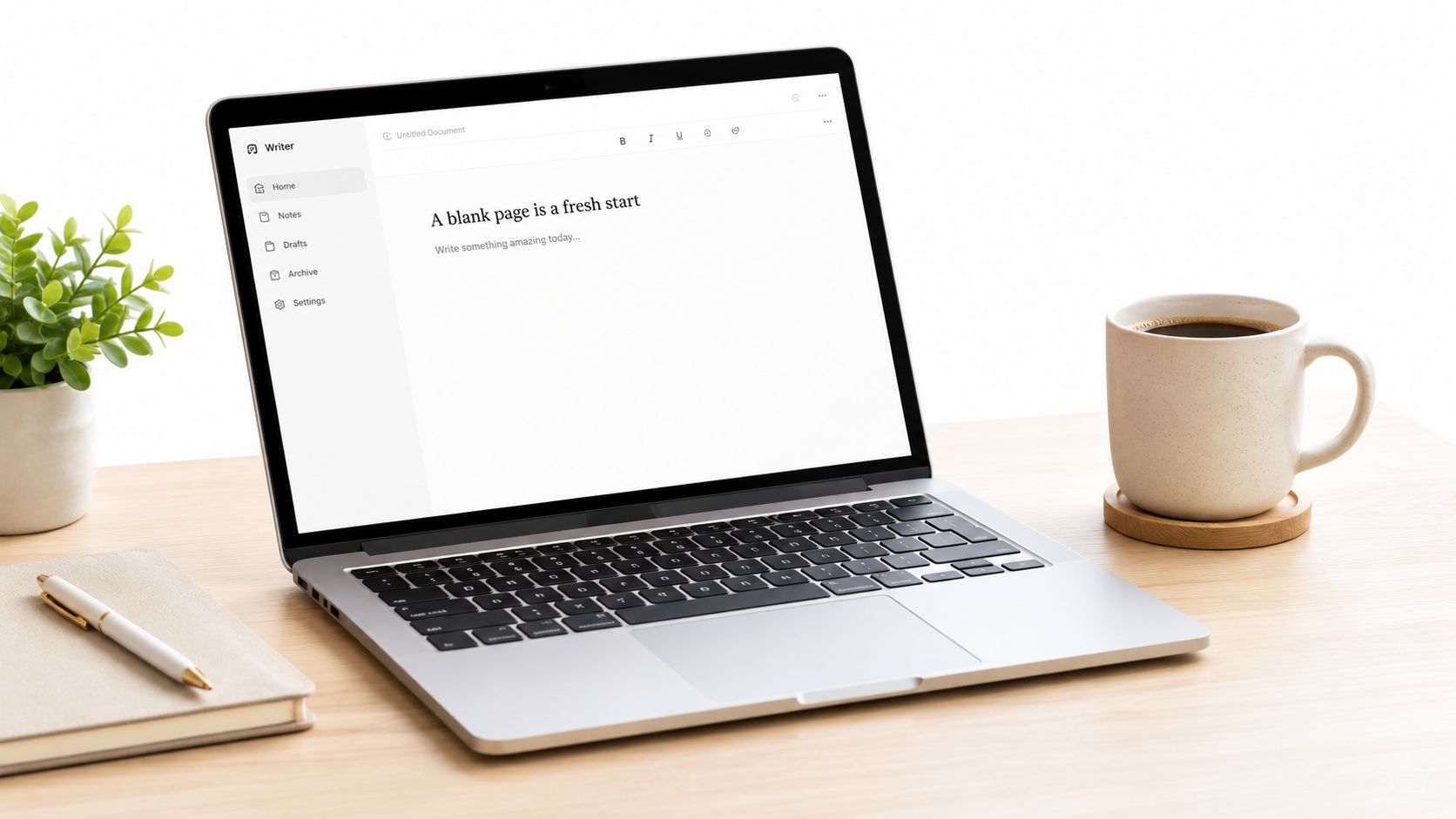
The right application doesn't just hold your text; it actively enhances your ability to communicate clearly and efficiently, no matter where you are writing. It becomes an extension of your thought process.
This kind of modern setup focuses on creating a cohesive workspace where different tools work together to support you. For a broader look at how these tools integrate into a freelancer's life, check out Narrareach for insights on workflow efficiency.
That clean, integrated environment is what Mac users demand. Of course, the app is only half the equation; its performance also depends on your hardware. Spending a moment on choosing the right Apple laptop can make a huge difference in your day-to-day writing experience. Once you embrace this shift, you can start reclaiming hours of your time and significantly improve the quality of your work.
How I Tested These Writing Apps
Quality diagnosis often reveals a missing methodology gap—readers want to know how you picked these tools, not just what they do. My evaluation focused on three specific criteria that matter for a real 2026 workflow: offline resilience, export speed, and AI integration friction.
I tested Scrivener’s compile feature against Ulysses’ export engine for three days straight. While Ulysses was faster for blog posts and web copy, Scrivener offered superior control over manuscript formatting and metadata. My experience with iA Writer was different; I found its distraction-free mode to be unmatched for deep drafting, but its lack of built-in versioning forced me to rely on external cloud backups.
Evaluation of AI features favors smooth shortcuts rather than clunky new windows. A tool that requires five clicks to trigger a rewrite breaks the flow. These apps handle complex projects offline while maintaining a lightweight footprint on the system. This ensures that whether you are on a MacBook Air or a Pro, the writing experience remains uninterrupted.
Comparing the Top Writing Apps for Mac
Choosing the right best writing app for mac 2026 isn't just about ticking off features on a list. It’s about finding a partner for your workflow, a tool whose design philosophy matches how you think and write. To do that, look past the marketing and judge how these apps feel in day-to-day use.
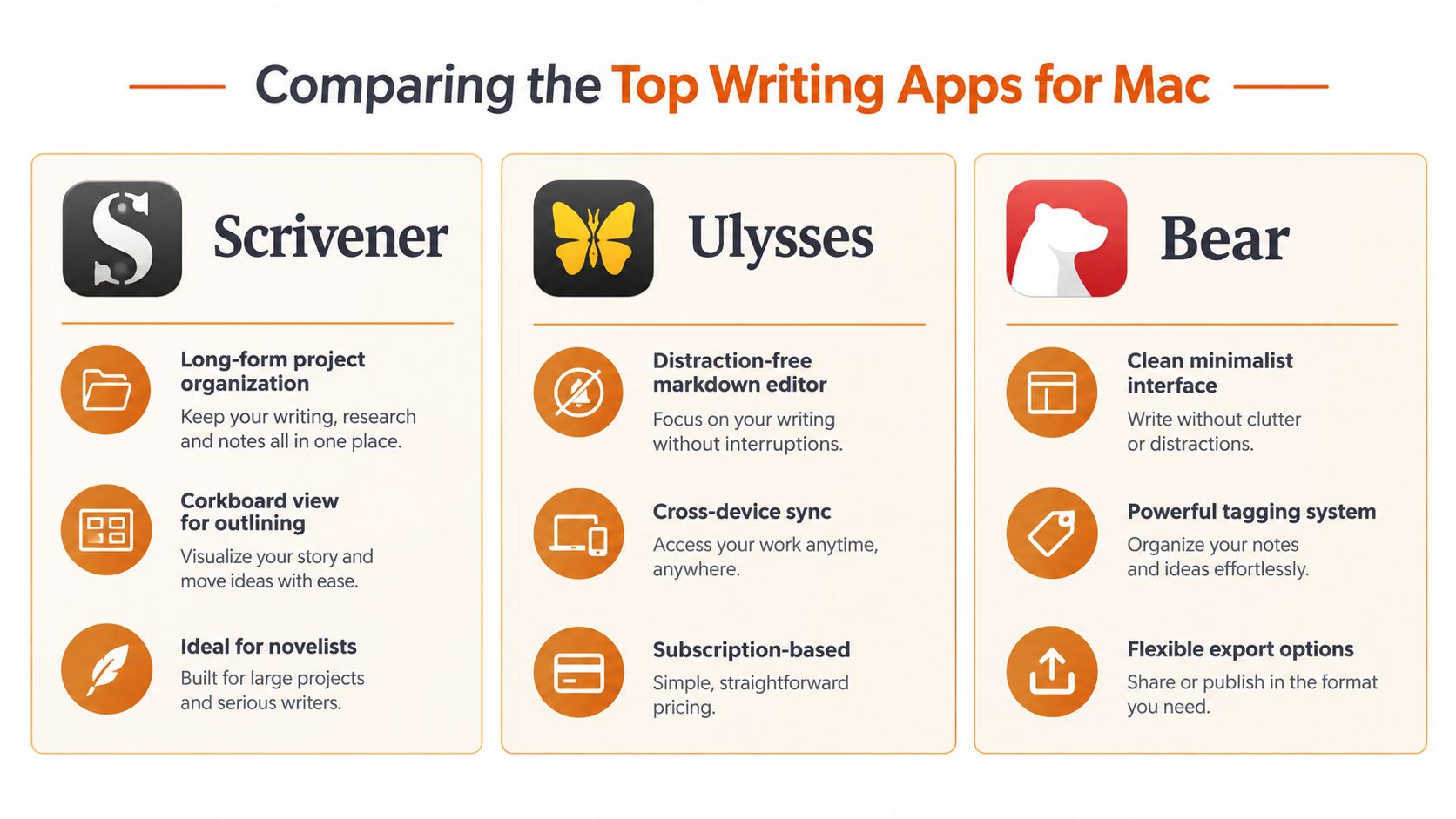
The market is crowded, but a few key players—Ulysses, Scrivener, and iA Writer—consistently rise to the top. This space is growing fast, on track to become a USD 260 million industry by 2033, which just shows how much writers are looking for specialized tools. We're going to break down the leaders across four key areas: the writing experience, project management, integrations, and smart features.
To start, let's get a quick overview of how these apps stack up against each other.
At-a-Glance Comparison of Mac Writing Apps
This table gives you a high-level look at each app, so you can quickly see where they shine and who they're built for.
| App | Primary Focus | Ideal User Profile | Standout Feature |
|---|---|---|---|
| Ulysses | Content Library & Publishing | Bloggers, journalists, content creators | Unified library with direct publishing |
| Scrivener | Long-Form Project Management | Novelists, academics, screenwriters | The "Binder" for non-linear writing |
| iA Writer | Minimalist Focus | Developers, technical writers, purists | Focus Mode for deep work |
| Grammarly | Writing Assistant | All writers needing polish | Real-time grammar & style feedback |
Now that you have the big picture, let's dig into the details that really matter.
Ulysses vs. Scrivener: Which Is Worth the Money?
This comparison addresses one of the most common questions in the writing community: how do the subscription model of Ulysses and the perpetual license of Scrivener stack up against each other in 2026? As we explore the best macbook apps for writers 2025 2026, the pricing models become a major deciding factor for many users.
Ulysses is frequently positioned as the all-in-one library tool, appealing to those who want a polished, cloud-synced ecosystem. Its pricing starts at just $3/month, which provides access to all current and future features. For writers who value speed and a beautiful interface, this recurring cost buys significant convenience.
In contrast, Scrivener is the long-form heavyweight. Priced at roughly $55 one-time (with optional upgrades), it appeals to users who prefer local file control and structural complexity. My testing showed that Scrivener’s learning curve is steeper, but its ability to manage massive manuscripts with thousands of documents is unmatched.
Which is better for MacBook Air vs. Pro? If you are using a MacBook Air, Ulysses tends to feel lighter and more responsive due to its optimized Mac-native code. Scrivener can feel heavier on lower-spec machines because of its intense indexing and rendering requirements. However, on a MacBook Pro, the performance gap narrows, and Scrivener’s power becomes more accessible.
For a deeper look at the broader market, it is important to understand that data-heavy workflows are increasing. According to recent analyses of the writing apps for macbook air 2025 2026 market, the volume of data these tools handle continues to expand, underscoring why choosing a tool that fits your specific project size is critical. Scrivener suits encyclopedic projects, while Ulysses is better for efficient content operations. See gauravtiwari.org/best-writing-apps-for-mac/ for more on these industry trends.
Core Writing Experience Showdown
A writing app's soul is its editor. Each of these contenders offers a completely different environment, built for a specific kind of writer.
Ulysses gives you a beautiful, sheet-based interface that feels like it was born on a Mac. It uses a slightly custom version of Markdown that's powerful but stays out of your way, making it perfect for anyone managing a library of articles or blog posts. The experience is clean and focused, with powerful organization just a click away.
iA Writer, on the other hand, is the master of minimalism. It's built on a "one text, one font" philosophy that aggressively strips away every possible distraction. Its famous Focus Mode, which grays out everything but the sentence you're working on, is a godsend for deep work.
Then you have Scrivener. It's less an editor and more a complete writing studio packed into one app. Its entire experience revolves around the "binder," which lets you shatter a huge project, like a novel, into thousands of tiny, manageable text snippets. For authors and researchers, this is transformative.
Key Takeaway: If you want a gorgeous, unified library for all your articles, get Ulysses. If you need absolute, zen-like focus to get words down, iA Writer is your app. If you're building a world or a thesis, Scrivener’s project-first approach is unmatched.
Project and Document Management
How an app helps you organize your work is just as important as the writing itself, and that is when the differences really start to show.
Scrivener is the undisputed king here, especially for massive projects. Its features are built from the ground up for long-form writing:
- The Corkboard: A virtual pinboard where every document becomes a notecard you can shuffle around to outline your story.
- The Outliner: A structured, hierarchical view for organizing your manuscript down to the scene level.
- Research Folder: A dedicated spot inside your project to dump notes, images, PDFs, and even web pages.
Ulysses uses a library-based system. All your writing lives in one place, synced via iCloud and organized with groups and filters. It’s a fantastic way to manage a blog or a collection of standalone essays. You can add keywords, set writing goals, and instantly find anything you’ve ever written.
iA Writer stays true to its minimalist roots, managing files directly on your computer's file system (like in Finder or iCloud Drive). This gives you total control and makes your files portable, but it lacks the built-in management tools of its rivals. It’s a classic trade-off: simplicity for power. For a deeper dive into different tools, our guide on Mac software for writing has more options.
Integrations and Exporting Capabilities
Your writing needs to go somewhere. The ability to connect to other platforms and export your work into different formats is essential for any serious writer.
-
Ulysses excels here. It offers one-click publishing to WordPress, Medium, and Ghost. Its export engine is also incredibly flexible, with beautiful built-in styles for PDF, ePub, and DOCX.
-
Scrivener’s strength is its "Compile" feature. This is a beast of a tool. It's complex, but it can take your messy binder full of text snippets and turn it into a perfectly formatted manuscript, e-book, or screenplay with total control.
-
iA Writer keeps it simple. It gives you clean HTML, PDF, and Word exports and can publish to platforms like Medium and WordPress, though with fewer bells and whistles than Ulysses.
Of course, these apps are just one part of a writer's setup. Understanding the broader ecosystem of Top Writing Tools for Authors can give you a better sense of how everything fits together.
AI and Smart Features
AI is quickly becoming a standard feature in modern writing software. Grammarly for Mac, which isn't a writing app but a system-wide assistant, is the clear leader. It sits on top of whatever you're doing, offering real-time feedback on grammar, spelling, clarity, and tone. For many, it's become an essential final-pass tool.
Ulysses and Scrivener have been more cautious about baking AI directly into their apps, preferring to stick to their core missions. The great thing is, they work perfectly with universal tools like RewriteBar or Grammarly. This lets you use a powerful, dedicated editor for your heavy lifting, then call in an AI assistant for the final polish. It's the best of both worlds.
The Advantage of Universal AI Assistants
Most Mac writing apps, like the excellent Ulysses or Scrivener, are built like walled gardens. They’re fantastic, self-contained environments for long-form writing, but their best features are stuck inside. This creates a clunky workflow: you write in those apps, but you also need to write everywhere else—in Slack threads, Jira tickets, code comments, and a dozen other browser tabs.
A universal AI assistant is different. It’s not another window you have to open. It’s a utility that helps you write better, anywhere on your Mac. These tools run at the system level, always ready to pop up in whatever app you’re using, completely changing how you interact with your writing.
Instead of stopping your work, copying text, pasting it into a separate editor, and then pasting it back, the intelligence comes directly to you. It’s a small shift in thinking that makes a huge difference in your daily flow.
A Keyboard-First Workflow for Speed
Universal assistants like RewriteBar are designed to be fast. They live in your menu bar and activate with a keyboard shortcut, so they become part of your muscle memory. This is key to staying in the zone and not breaking your focus.
Imagine you're polishing a pull request description on GitHub. A sentence just doesn't sound right. Instead of switching apps, you highlight it and press your hotkey. A minimal interface appears, grabs your text, and gives you options to fix the grammar, shorten it, or make the tone more formal. One click, and the corrected text is in place.
A universal assistant doesn't replace your favorite editor; it complements it. It's the AI layer that sits on top of your entire workflow, providing instant support without forcing you to change how or where you work.
This kind of in-context help is what makes the model so effective. It eliminates the friction of context-switching, which is a known productivity killer. The seconds you save on each little edit add up fast, especially if your job involves writing across different apps all day.
Going Beyond Grammar and Spelling
While fixing typos and grammar is a great start, a true universal assistant can do much more. It becomes a command center for almost any text-based task you can think of.
Here are a few real-world examples:
- For Developers: You’re writing documentation in VS Code and need to simplify a technical paragraph for a broader audience. Highlight it, run a custom command, and instantly get a clearer version.
- For Marketers: You draft a product announcement in Notes. Use the assistant to generate five different variations for Twitter, LinkedIn, and an email newsletter, all without leaving the app.
- For Non-Native Speakers: You can write an important email in Mail.app and use the assistant to double-check that your tone is professional and your phrasing sounds natural.
With RewriteBar, you can build your own workflows that chain actions together, like "Translate to German, then make the tone more formal." This turns the assistant into a tool that’s perfectly tuned to your job. It also plugs right into the future of on-device AI; you can learn more about how to set up Apple Intelligence to power these kinds of private, on-device actions.
By working everywhere and adapting to what you're doing, universal AI assistants give Mac users a huge boost in speed and efficiency. Writing is no longer a separate, siloed task but an integrated part of your everyday work.
Picking the right Mac writing app isn't about finding one "best" tool. It’s about finding the one that fits so seamlessly into your workflow you forget it's even there. Forget generic advice—the best choice is all about what you do day-in and day-out.
Organized by professional role, the guidance focuses on building a writing system that works for you.
For the Software Developer
A developer’s writing happens in short, fragmented bursts. You're writing technical docs, code comments, pull request descriptions, and Slack messages. Precision is everything, but switching from your code editor to a separate writing app is a total productivity killer.
My recommended setup is a minimalist editor like iA Writer for deep work, paired with a universal assistant that works everywhere else.
- iA Writer for Documentation: Its clean, Markdown-first interface is perfect for drafting technical specs without distractions. Being able to work with files directly in a Git repo is a huge benefit.
- RewriteBar for In-Flow Polish: When you're in VS Code, you can highlight a convoluted code comment, hit a shortcut, and let RewriteBar instantly clarify it. It works just as well for sharpening PR summaries on GitHub or explaining a bug in Jira.
The goal for developers isn't to leave the code editor. It's to bring powerful writing tools directly into the environment where communication happens.
This approach lets you stay in a state of deep focus for long-form docs while ensuring the small, critical bits of writing are polished on the fly, right where you type them.
For the Content Creator
If you're a content creator, marketer, or blogger, your world revolves around a content library. The big challenge is managing a high volume of articles, social posts, and newsletters, all while keeping your voice consistent and repurposing content without losing your mind.
The best setup here combines a powerful content management app with a flexible AI tool for quick iteration.
- Ulysses as the Content Hub: Ulysses is my go-to for a central library of articles. Its organization, writing goals, and direct publishing to WordPress and Ghost are indispensable for a high-output workflow.
- RewriteBar for Content Multiplication: Once you've drafted a blog post in Ulysses, you can just highlight the intro and use RewriteBar to spin up five different social media hooks for Twitter, LinkedIn, or Facebook. This massively speeds up distribution.
Being able to create variations this quickly makes a major difference. You can turn one long-form article into a dozen different social posts, each adapted for its platform, in just a few minutes.
For the Non-Native English Speaker
For professionals writing in a second language, the biggest hurdles are often clarity and confidence. The worry over small grammatical mistakes or unnatural phrasing can slow you down and add a ton of stress to high-stakes emails or reports.
In this case, a traditional, standalone writing app is less important than a tool that offers immediate feedback inside any application.

The decision really comes down to whether you write in one dedicated place or across many different apps. For most of us, it’s the latter.
The most effective solution is a system-wide assistant that acts like a language coach, available anytime you need it.
- Universal Correction with RewriteBar: Whether you're in Microsoft Outlook, Slack, or a Google Doc, RewriteBar offers instant help. Just highlight a sentence, press a shortcut, and you can fix grammar, check the tone, or rephrase it to sound more natural to a native speaker. It's far more efficient than copying and pasting into another program.
Apple's macOS has become the perfect environment for these lightweight utilities. With macOS 26.3 projected to hit 39.50% market share among app users by 2026, the trend favors menu-bar tools like RewriteBar, especially with Apple Intelligence enabling private, offline AI. This is a huge draw for small and mid-sized businesses, which are adopting writing apps for macbook pro 2026 at rates 60% higher than large corporations and seeking tighter integration. You can find more data on macOS trends over at TelemetryDeck.
This approach builds confidence by giving you a safety net that works wherever you do. It also pairs nicely with other accessibility features—you can combine it with voice-to-text by learning how to use dictation on a Mac and create a completely hands-free workflow.
Evaluating Privacy and Performance in AI Writing Tools
As AI finds its way into nearly every writing apps for mac, two factors have become more important than ever: privacy and performance. It’s no longer just about features. Where your text gets processed and how much an app slows down your Mac are now central to the experience.

The biggest difference comes down to cloud-based versus local processing. An app like Grammarly is a classic example of a cloud-first tool. As you type, your text is sent to their servers for analysis, and the suggestions are sent back. This gives you access to powerful, large-scale AI models, but it also means your data leaves your device and you need a constant internet connection.
The Rise of On-Device and Hybrid Models
If you're handling sensitive information—or just prefer to keep your writing private—the solution is local, on-device processing. Tools built this way run all their analysis directly on your Mac. Your writing stays completely private, and you can use the app even when you’re offline.
A hybrid approach gives you the best of both worlds. RewriteBar, for example, lets you decide. You can tap into powerful cloud models from providers like OpenAI or Anthropic when you need maximum power, or you can switch to a fully private, offline mode.
This local processing is possible thanks to integrations with platforms like Ollama, LM Studio, and even Apple’s own Apple Intelligence. It puts you in control, letting you decide whether to prioritize the raw power of the cloud or the absolute security of on-device AI.
Your choice is no longer a simple trade-off between power and privacy. Modern tools allow you to have both, selecting the right processing method for the right context, ensuring your data stays secure without sacrificing functionality.
This flexibility is a huge step forward. You can use a private, local model for a confidential work email and then switch to a massive cloud model to brainstorm creative ideas—all from the same app.
Analyzing System Performance and Resource Footprint
Performance is the other side of the coin. A feature-packed, all-in-one writing application might seem great on paper, but it can also be a massive drain on your Mac's CPU and memory. You'll really feel this when you're multitasking with other demanding programs.
There's a clear difference between large, monolithic apps and lightweight, single-purpose utilities.
-
Large Applications: Tools like Scrivener or other complex word processors are powerful, but they often have a much higher resource footprint. They're designed to be a complete writing environment, which means they are always running, managing large project files, indexes, and complex interfaces.
-
Menu-Bar Utilities: A tool like RewriteBar is built with a different philosophy. It’s a menu-bar utility that stays out of your way until you call it with a keyboard shortcut. It does its job and then disappears, using minimal system resources.
This lightweight approach is perfect for professionals who need quick, in-context help without the performance hit of keeping another heavy application open. For developers, marketers, and writers who spend their day jumping between different apps, this speed and efficiency are key to a smooth workflow.
The best writing app for your Mac isn't just about what it can do; it's about how well it respects your privacy and your system's performance.
Frequently Asked Questions About Mac Writing Apps
When you're trying to find the right writing app for your Mac, a few common questions always seem to pop up. Here are some straightforward answers to help you pick the perfect tool for your workflow.
What Is the Best Free Writing App for Mac?
If you need a solid, no-cost option with great collaboration features, Google Docs is hard to beat. It works on any device and is perfect for team projects or if you're constantly switching between your Mac and other computers.
For a more focused, native Mac experience, give Bear a look. The free version is surprisingly capable, offering a beautiful, clean interface with full Markdown support and a simple tagging system that just works. It's an excellent choice if you value design and simplicity.
Can I Use These Writing Apps Offline?
Yes, absolutely. Most serious writing apps for Mac are built with offline use in mind. They know that inspiration doesn't wait for a good Wi-Fi signal.
- Dedicated Editors: Apps like Ulysses, Scrivener, and iA Writer save your work directly to your Mac. This means you can write anywhere—on a plane, in a park, or at a cafe—without a second thought about your internet connection.
- Universal Assistants: Even modern AI tools are catching on. RewriteBar offers completely offline AI processing by integrating with local models through Ollama and Apple Intelligence, keeping your work private and your flow uninterrupted.
The ability to work offline isn't a bonus feature; it's a core requirement for any professional-grade Mac writing tool. It guarantees reliability and ensures your workflow is never held hostage by a spotty connection.
This makes native Mac apps a far more dependable choice than purely cloud-based tools for anyone serious about writing.
Which Writing App Is Best for Authors and Novelists?
For long-form writing like novels, screenplays, or dissertations, Scrivener is pretty much the industry standard. It was built from the ground up to handle the unique chaos of massive projects.
Its real power is in its structure. The "Binder" feature lets you break down a huge manuscript into small, manageable scenes or chapters. You can then use the "Corkboard" to rearrange those pieces with virtual index cards, making it simple to visualize and restructure your story. With dedicated spaces for research, notes, and character sketches, Scrivener keeps everything you need in one place, which is a lifesaver for authors.
Ready to enhance your writing everywhere on your Mac? RewriteBar works in any app, providing instant grammar fixes, tone adjustments, and custom commands with a simple keyboard shortcut. Stop switching windows and start improving your flow at rewritebar.com.
About the Author
Mathias Michel
Maker of RewriteBar
Mathias is Software Engineer and the maker of RewriteBar. He is building helpful tools to tackle his daily struggles with writing. He therefore built RewriteBar to help him and others to improve their writing.

More to read
Improving Workflow Efficiency: A Practical Guide for 2026
Unlock peak productivity by improving workflow efficiency. Our guide offers step-by-step methods to audit, measure, automate, and monitor your process.
12 Best AI Tools for Content Creators in 2026
Discover the 12 best AI tools for content creators in our detailed 2026 review. Boost your workflow with AI for writing, video, SEO, and design.
7 Best Writing Templates for Faster Work
Explore the best writing templates for emails, summaries, user stories, social posts, and code comments—and learn how to use them in RewriteBar.
Tags
Written by
Mathias MichelPublished
March 12, 2026