Distraction Free Writing App: A Complete Buyer's Guide
Find the best distraction free writing app for your workflow. Compare features, privacy options, and how AI assistants like RewriteBar fit in.
Written by
 Mathias Michel
You're halfway through a paragraph when a notification appears. You glance at it, answer a quick message, check a browser tab, and return to the document with no clear memory of the sentence you were building. The interruption lasted seconds. Recovering the argument takes much longer.
That's why a distraction free writing app shouldn't be judged by its color palette or whether the toolbar disappears. The pertinent question is more practical: does the tool protect the act of composing, or does it give your existing distractions a cleaner background? Research on interrupted writing found that 96% of participants performed worse when distracted, and interrupted writers scored about half a point lower on essay quality than uninterrupted writers in the reported task (Live Science's coverage of the interruption study).
The market now splits into two jobs. Some writers need total disconnection, with no network, notifications, or tempting side features. Others want friction reduction inside their existing workflow, including access to editing assistance without moving text between apps. This guide takes that fork seriously and evaluates tools by switching cost, interface behavior, privacy, and the specific kind of writing you do.
When the Blank Page Starts Fighting Back
You're drafting an introduction, the sentence is finally taking shape, and your operating system flashes a message. You open it because ignoring a notification feels easier than resisting it. A reply leads to another tab, then a quick search, then an unrelated message. When you return, the cursor is still waiting, but the thought has gone cold.
The cost isn't limited to the time spent reading the alert. You must reconstruct the last sentence, remember the point you intended to make, and rebuild the emotional or analytical momentum behind it. Research on word-processed writing found that writers needed about 10 to 15 seconds to regain full writing speed after an interruption, while background speech also disrupted composition, with dialogue more distracting than a halfalogue (the interruption study in Applied Cognitive Psychology). Repeated across a session, those recovery windows turn a short drafting block into a sequence of restarts.
Practical rule: Judge an interruption by the recovery it causes, not by the length of the notification.
A modern document competes with more than email. The system tray, browser tabs, chat clients, cloud prompts, formatting panels, analytics reminders, and AI assistants all sit close to the cursor. A full-screen window can hide some of them, but it can't automatically stop every application from asking for attention.
That's where simplistic app reviews fall short. Removing a toolbar helps when the toolbar invites formatting decisions, but it doesn't solve a workflow that requires copying text into another window for every revision. Conversely, an aggressively isolated editor may protect a novelist's first draft while frustrating a student who needs references, a developer who writes beside code, or a marketer who must refine copy in a CMS.
The right purchase depends on the interruption you're trying to remove. If your problem is compulsive switching, choose stronger isolation. If your problem is editing friction, keep your preferred editor and add narrowly targeted assistance. The rest of the decision should follow that distinction.
What Counts as a Distraction Free Writing App
A distraction free writing app gives the draft priority in both appearance and operation. Secondary actions should remain optional, delayed, or hidden, so writing does not compete with file management, formatting, feeds, or account prompts.
Use these signals when testing an editor:
- One document surface: The draft fills the workspace instead of sharing it with a dashboard, file browser, project panel, or activity feed.
- Quiet controls: Toolbars, formatting ribbons, and status panels stay hidden until you request them.
- Optional chrome: You can toggle interface elements instead of accepting a permanently crowded layout.
- Focus modes: Fullscreen or zen modes reduce visual competition. Stronger versions also dim nearby text or highlight the current sentence.
- Stable line position: Typewriter scrolling keeps the active line near the center, preventing your eyes from chasing the screen's lower edge.
- No attention prompts: The app avoids upgrade notices, analytics nudges, collaboration requests, and notification badges during composition.
A clean canvas alone proves little. Tabs, file trees, sync alerts, and account requests can still create decisions, even when the editor looks calm. Writing studies describe this burden as attentional overhead. Organizing, formatting, switching tools, and checking external feeds displace the central task of producing words (research on composing focus).
Fullscreen is a setting, not a complete solution
Fullscreen hides desktop clutter. It does not silence the operating system, browser, phone, or your own habits. If messages continue flashing, or the editor invites file reorganization during drafting, the blank page is only cosmetic.
Run a simple test. Open a new document and write without touching the mouse. A focused editor should let you draft, save, and continue without exposing menus or forcing a format decision. If the session turns into panel management, its minimalism is creating friction rather than removing it.
For focus habits beyond writing software, get more done with Pretty Progress addresses interruptions across the wider workday.
The category has two practical ends. A local, typewriter-style tool cuts connections to the wider computer and suits writers who need total disconnection. A familiar editor with targeted assistance reduces workflow friction while preserving access to existing apps. RewriteBar fits the second path, giving writers AI-assisted editing without requiring them to abandon their preferred editor.
Choose based on the interruption you need to remove. Strong isolation protects drafting. Lightweight assistance protects continuity when revision, references, or collaboration remain part of the work.
Core and Advanced Features That Protect Your Focus
Feature lists often confuse visual restraint with cognitive protection. A dark theme may feel calmer, but it doesn't stop a notification. An ambient soundtrack may help one writer and annoy another. Evaluate every feature by the interruption or decision it removes.
Core features deserve priority
| Feature | What It Removes | Focus Impact | Risk of Adding Friction |
|---|---|---|---|
| Fullscreen mode | Desktop and app chrome | High during drafting | Low, unless navigation becomes difficult |
| Hideable interface | Toolbars, sidebars, status panels | High when controls compete with the cursor | Low if toggled by keyboard |
| Focus highlighting | Visual competition from nearby text | High for sentence-level drafting | Moderate if the dimming is too strong |
| Typewriter scrolling | Eye movement toward the screen edge | Moderate to high for long drafts | Low |
| Dark mode | Harsh contrast and visual glare | Comfort benefit, not interruption control | Low |
| Ambient sounds | Perceived silence or environmental noise | Personal and situational | Moderate if the library becomes a distraction |
| Session goals | Unstructured writing time | Useful for starting and sustaining a block | Moderate if metrics become the new task |
| Offline editing | Network prompts and connection dependency | High for isolation and privacy | Moderate when syncing is unavailable |
Fullscreen mode and hideable controls are foundational, but keyboard access matters more than the button itself. If leaving focus mode requires hunting through menus, you'll avoid useful actions or break your rhythm whenever you need them.
Focus highlighting and typewriter scrolling address visual drift rather than external interruption. They're particularly valuable in long documents, where the eye can wander into earlier paragraphs or a project sidebar. Keep them adjustable. A dimming effect that makes revision difficult is not focus protection.
Dark mode belongs in the comfort category. It can make a long session easier on your eyes, but it won't improve attention by itself. Ambient sounds have the same limitation. Use them only if they mask a distracting environment, and prefer a simple control over a large sound library.
Advanced features need stricter scrutiny
Pomodoro timers and writing statistics can create useful boundaries, but they can also turn drafting into dashboard maintenance. Read-aloud tools help with revision by exposing awkward rhythm, while version snapshots protect experimentation without forcing you to duplicate files manually. Distraction analytics are less compelling unless they lead to a concrete change in your setup.
Granular Do Not Disturb controls are more valuable than another theme. The best implementation can silence notifications at the system level or provide a clear handoff to your operating system's focus settings. Web editors often struggle here because the browser remains a gateway to every other task. Native desktop apps can create a stronger sandbox, while mobile apps offer portability but leave messaging and social apps one gesture away.
AI features require judgment. Inline completions may preserve flow when they handle a small correction in place. They may also interrupt your sentence with suggestions that invite evaluation before the thought is finished. For first drafts, keep AI outside the typing path. Use it after the paragraph exists, unless the tool can act on selected text without forcing a window switch.
Choosing Between Full Isolation, Fullscreen Editors, and Lightweight AI
The category is easier to understand once you stop asking which app is “most distraction free.” Decide which of three jobs you need: remove the computer, quiet the editor, or reduce editing friction without leaving the editor.
| Category | Best For | Switching Cost | Focus Enforcement | Flexibility |
|---|---|---|---|---|
| Full isolation apps | Deep drafting, journaling, novel work | High when research or collaboration is needed | Strong | Low to moderate |
| Fullscreen minimalist editors | Students, bloggers, markdown writers | Moderate | Moderate to strong | Moderate |
| Lightweight AI tools | Writers who already have a preferred editor | Low for in-place editing | Depends on the host app | High |
Full isolation
A typewriter-style editor strips away menus, network access, or both. It suits writers who need a ritualized separation from email and research. The trade-off is deliberate inconvenience. Copying references, checking terminology, collaborating, or using dictation may require leaving the focused environment, which can be exactly what you want during a first draft and exactly what you don't want during technical work.
Fullscreen minimalist editors
These tools occupy the middle ground. A browser-based blank page or markdown-native desktop editor can provide a clean writing surface, export options, and enough file access for ordinary drafting. The browser version remains vulnerable to open tabs and web notifications, while a native editor can provide stronger local control. This branch is usually the sensible default for bloggers and students who want less interface without abandoning ordinary document handling.
Lightweight AI assistance
A menu bar assistant takes a different approach. It doesn't replace your editor. It acts on selected text, so you can draft in Word, Obsidian, a browser CMS, or another familiar app and request a rewrite, tone change, translation, or custom prompt without opening a separate drafting interface. The model is documented in this guide to writing apps for Mac, and it fits writers whose main problem is the copy, paste, and window-switching loop.
The choice is behavioral. Novelists who want ceremony should choose isolation. Writers who need a clean canvas with occasional export should choose a fullscreen editor. Developers, marketers, students, and technical writers who already work across several apps should consider lightweight assistance, because abandoning their existing stack may create more friction than it removes.
Setup Tips and Workflow Habits for Deep Focus
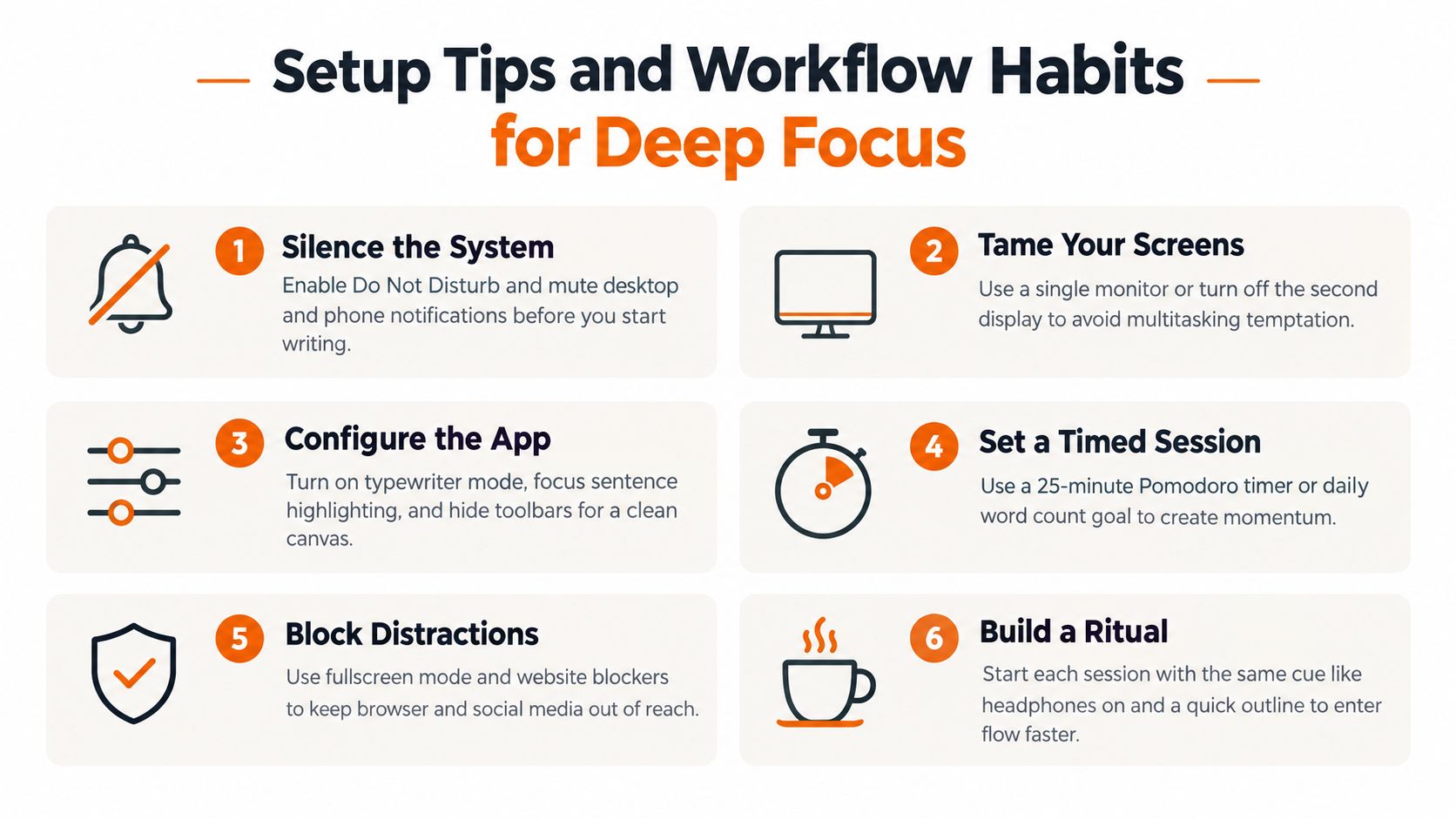
A focused editor can't compensate for a noisy computer. Set up the environment first, then configure the app, then build a routine that makes starting predictable.
- Silence the system. Enable Do Not Disturb and mute desktop and phone notifications before opening the draft.
- Tame your screens. Use one monitor for composition, or turn off the second display when it becomes an invitation to multitask.
- Configure the app. Turn on typewriter mode, current-sentence highlighting, and hidden toolbars if those options help you stay with the active paragraph.
- Set a timed session. Use a 25-minute Pomodoro block or a daily word-count goal to create a defined starting target.
- Block distractions. Combine fullscreen mode with a website blocker if your browser is the main escape route.
- Build a ritual. Repeat a cue such as putting on headphones, opening the same document folder, and writing a quick outline.
Remove small visual interruptions
Turn off autocorrect if it changes words before you've finished the thought. Consider disabling spellcheck underlines during first drafts, especially when names, code, multilingual text, or specialist terms create a field of red marks. Keep autosave enabled, but send backups to a known location rather than relying on an interface badge to reassure you.
Use a stable naming convention such as project-stage-date so saving never becomes a search problem. If you work offline, back up to a local drive or another storage target when the session ends. The point is to make recovery automatic, not to add another ritual of checking settings.
A focused workflow should feel boring before it feels productive. Fewer choices leave more attention for the sentence.
Route incoming messages into one inbox and check it at planned times instead of reacting throughout the day. Choose keyboard-only navigation for drafting, and reserve mouse-driven formatting for a separate editing block. This separates generation from correction, which keeps the first pass from becoming a constant negotiation with the interface.
For a practical look at the category and its workflow implications, this distraction-free writing guide is a useful companion. You can also use the following video as a visual demonstration of focus-oriented writing habits.
<iframe width="100%" style="aspect-ratio: 16 / 9;" src="https://www.youtube.com/embed/7Zgb9HsTFUE" frameborder="0" allow="autoplay; encrypted-media" allowfullscreen></iframe>A repeatable daily pattern works better than relying on motivation. Start with a short warm-up and rough outline, move into a protected draft block, switch to a separate edit block, then close by saving, backing up, and recording the next action. That shutdown note matters because it gives tomorrow's session an obvious entry point.
Privacy, Offline Mode, and Performance Trade-Offs
Minimalism is also a data-flow decision. Before choosing a distraction free writing app, determine where your draft lives, whether the app needs a network connection, what telemetry it collects, and what happens when an AI feature processes selected text.
A local-only editor usually stores files on your device, often in accessible formats such as plain text or markdown. That arrangement gives you direct control and keeps the writing available without a connection, but it shifts responsibility for backups and device security to you. A cloud-synced editor simplifies access across devices and protects against some local failures, yet it introduces account access, synchronization behavior, and service dependency.
| Tool Type | Data Storage | Offline Capable | Telemetry Risk | Performance Cost |
|---|---|---|---|---|
| Local minimalist editor | Device storage | Usually strong | Lower, depending on analytics | Usually low |
| Cloud writing workspace | Provider storage and local cache | Varies | Moderate to high, depending on policy | Sync and account overhead |
| Browser blank-page editor | Browser session or connected storage | Often limited | Browser and service dependent | Low editor cost, higher environment exposure |
| AI-assisted editor | Selected text may reach a model provider | Depends on provider and setup | Provider and integration dependent | Network latency or local model load |
Treat AI as a separate trust boundary
An AI rewrite request isn't the same as local spellcheck. The selected passage may be sent to a model provider, retained according to that provider's policy, or handled through a local model if the application supports one. For public blog copy, that risk may be acceptable. For client contracts, unpublished research, personal memoir, or proprietary code, read the data policy before making AI part of the workflow.
Privacy also affects performance. Always-on syncing can create conflict prompts or background activity, while a static local application tends to launch and respond with less environmental overhead. Local AI models avoid sending text to a remote provider but may require more device resources and setup.
Match the tool to the draft
Use local storage for sensitive material when you can manage backups properly. Use cloud sync when multi-device access and recovery matter more than strict isolation. If you need AI, send only the passage that requires help, avoid unnecessary context, and understand whether the provider offers local processing, retention controls, or neither.
Offline mode deserves a real test rather than a checkbox review. Disconnect the network, open a draft, edit it, save it, and reconnect later. Watch for duplicated files, failed saves, or sync conflicts. A tool that looks minimal while online may become unusable when its account or connection disappears.
Where RewriteBar Fits and What to Do Next
RewriteBar belongs in the lightweight AI branch, not the standalone-editor branch. It sits in the macOS menu bar and works with text input across existing applications. You select text, invoke it with a keyboard shortcut, and request a grammar fix, clarity pass, tone adjustment, translation, or custom workflow without opening a separate drafting window.
That distinction matters because editing creates a different problem from first-draft composition. A novelist seeking total isolation may not want any assistant nearby. A technical writer working in Word or Obsidian may want to keep the document, references, and formatting environment intact while tightening one paragraph. For that second writer, copying text into a browser chatbot, waiting for a response, copying it back, and comparing versions adds avoidable switching.
What it solves
The useful RewriteBar workflow is narrow. Draft first, select the awkward sentence or verbose paragraph, then apply a targeted operation. That keeps the blank-page phase separate from revision while avoiding a move into another app. It's especially relevant to non-native English speakers, developers writing documentation or comments, marketers shaping tone, students revising assignments, and academics working inside an established editor.
It's less suitable for writers who require an offline-only environment unless they configure a local model path and verify that their setup meets that requirement. It also isn't a replacement for a project-based editor, research manager, or full document processor.
| Category | Example Tools | Friction Level | Best For |
|---|---|---|---|
| Full isolation | Typewriter-style local editors | High by design | Writers protecting first-draft attention |
| Fullscreen minimalist editors | Markdown and focused desktop editors | Moderate | Bloggers, students, and clean-canvas drafting |
| Lightweight AI | RewriteBar alongside an existing editor | Low for selected-text edits | Writers who need revision help without window switching |
Run a real trial before changing your stack
Test the combination rather than judging either tool in isolation. Pair a fullscreen editor with the lightweight assistant only if the assistant can stay out of the way during drafting and appear when revision begins. For a practical onboarding sequence, use this guide to getting started with RewriteBar.
Use a 14-day trial checklist:
- Days 1 to 3: Draft with notifications silenced and the editor in fullscreen mode. Record where you still switch away.
- Days 4 to 6: Add typewriter scrolling, focus highlighting, and a fixed session routine. Note whether the settings help or distract.
- Days 7 to 9: Use the AI assistant only on selected text after drafting. Test grammar, clarity, tone, and translation separately.
- Days 10 to 11: Test offline behavior, backup recovery, and any provider or local-model settings you plan to use.
- Days 12 to 13: Repeat the workflow on real material, such as a blog post, technical explanation, or academic passage.
- Day 14: Keep the setup only if it reduces switching without adding new prompts, decisions, or privacy concerns.
The right combination isn't the one with the fewest buttons. It's the one that protects your drafting attention while making necessary revision easier.
RewriteBar offers keyboard-first grammar, tone, clarity, translation, and custom prompt workflows from the macOS menu bar, so you can refine selected text without abandoning the app where you write. If you want workflow-friendly focus rather than total disconnection, visit RewriteBar and test it alongside your preferred distraction free writing app.

More to read
7 Best Writing Templates for Faster Work
Explore the best writing templates for emails, summaries, user stories, social posts, and code comments—and learn how to use them in RewriteBar.
How to Use AI for Writing (2026 Practical Workflow)
Learn how to use AI for writing with a step-by-step workflow covering prompt templates, editing, privacy options, and ready-to-use examples for every task.
Grammarly Alternative for Mac: Best Picks for 2026
Looking for a Grammarly alternative for Mac? Compare the best options for grammar, tone, privacy, offline use, integrations, and pricing in 2026.
Tags
Written by
Mathias MichelPublished
September 22, 2026