Grammarly Alternative for Mac: Best Picks for 2026
Looking for a Grammarly alternative for Mac? Compare the best options for grammar, tone, privacy, offline use, integrations, and pricing in 2026.
Written by
 Mathias Michel
You're probably not writing in one place. On a Mac, the day usually jumps between Mail, Google Docs, Slack, Notes, Word, Notion, and often an IDE. That's why picking a Grammarly alternative for Mac gets tricky fast. A tool can look great on a features page and still fail the moment you need it inside a native app, a chat box, or a draft you don't want to paste into a browser.
That gap matters more on macOS than many roundups admit. StatCounter's desktop OS data shows macOS still holds a meaningful share of worldwide desktop usage, and Apple's installed base is large enough that Mac-first writing tools aren't serving a niche. If you're choosing software for daily writing, it makes sense to evaluate it as a Mac workflow tool, not just as a grammar engine.
This list looks at what happens in use. Does the tool work across apps or only inside its own editor? Does your text stay local, go to the vendor's cloud, or depend on your own model setup? Can you work offline? Is the tool best for authors, multilingual writing, Office-heavy work, readability cleanup, paraphrasing, or team support?
One more reality check. Grammarly sets a high baseline for usability. A university survey summarized by UIC found strong routine use and high satisfaction, so alternatives on Mac need to feel fast, convenient, and always available, not just technically capable.
1. RewriteBar
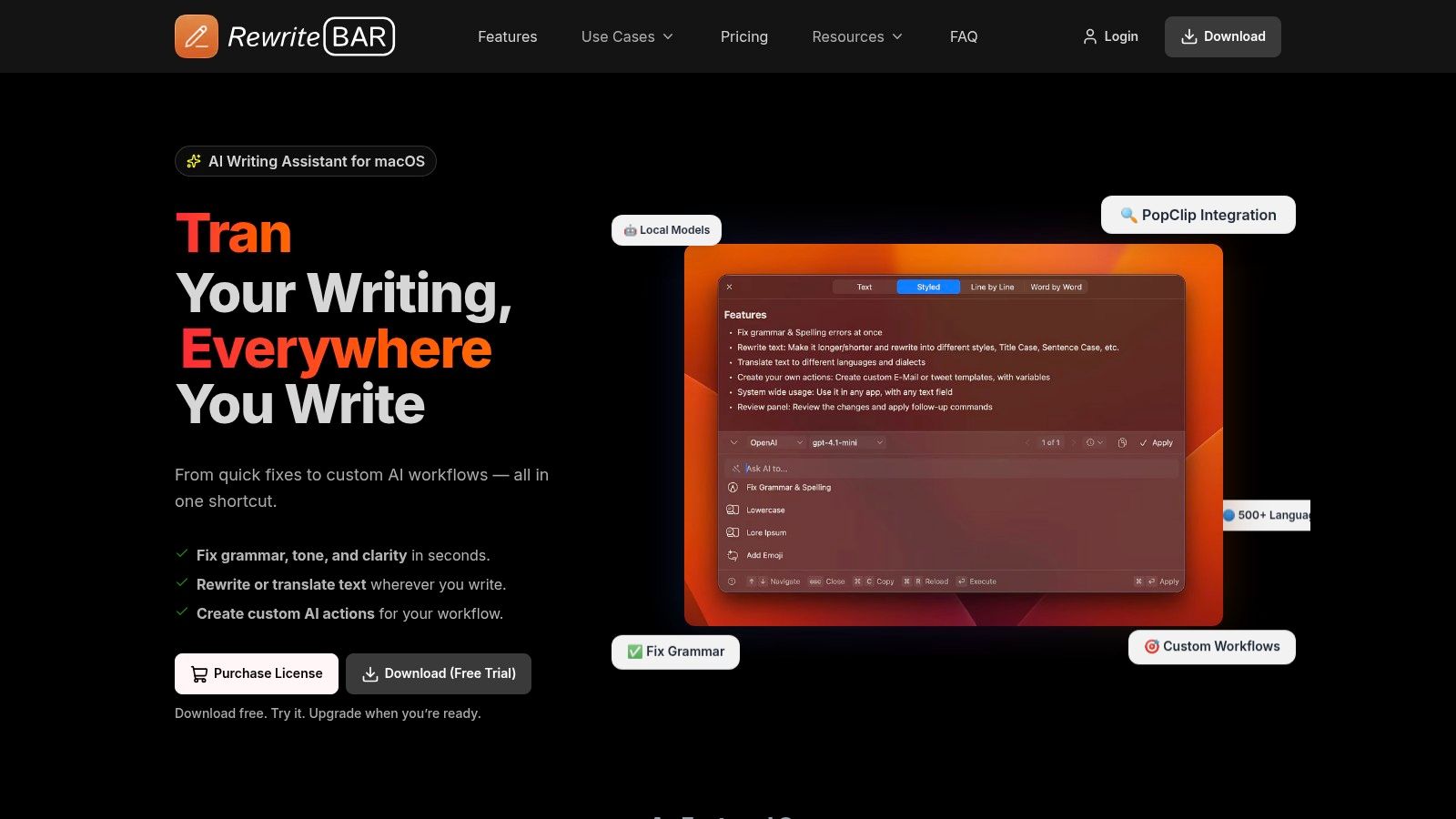
A common Mac writing problem looks like this: a draft starts in Notes, turns into an email in Mail, picks up comments in Slack, and ends with edits in Word or Notion. RewriteBar fits that kind of day better than editor-bound grammar tools because it works on selected text inside the app already on screen.
RewriteBar runs from the menu bar and relies on shortcuts instead of a separate writing window. Select a sentence, paragraph, or block of text, run an action, and review the result before replacing anything. On macOS, that matters. Many alternatives are strong inside a browser or a dedicated editor, but weaker once the work moves into native apps.
Best use case on Mac
RewriteBar makes the most sense for people who want one utility across many apps rather than one editor with deeper reports. It can rewrite for tone, fix grammar, tighten wording, summarize, translate, and run custom prompts. The side-by-side diff is one of its more practical choices because it lets you inspect changes instead of accepting a full rewrite blind.
The Mac advantage is straightforward. It follows selection and shortcut behavior, so it can fit into Mail, Slack, Word, Notes, Notion, and coding tools without forcing copy and paste into a web app.
A few trade-offs are worth calling out:
- Cross-app coverage: Strong fit for Mac users who write in several native apps each day.
- Model choice: You can use cloud providers such as OpenAI, Anthropic, DeepSeek, and OpenRouter, or connect local options through Ollama, LM Studio, or Apple Intelligence.
- Repeatable workflows: Custom actions are useful for recurring tasks like summaries, support replies, structured cleanup, or developer-focused text transforms.
- Setup burden: Flexibility is a strength, but it also means more decisions about providers, keys, and local model configuration.
Privacy and offline workflow
RewriteBar is more privacy-conscious than browser-first tools that route everything through a hosted editor. Text is not stored on its servers by default, and local model support gives Mac users a real on-device path for sensitive material. That will matter to developers, consultants, legal teams, and anyone working with internal drafts that should not leave the machine.
Offline use depends on how you configure it. With a local model, you can keep work on-device. With cloud models, your text goes to the provider you choose. That is the core trade-off. RewriteBar gives more control than Grammarly-style systems, but control also means setup time and some responsibility for choosing the right model for the job.
Who should choose it
RewriteBar is the strongest recommendation in this list for Mac users who care first about app coverage, privacy options, and speed. It is less compelling for someone who wants one-click grammar checking with no model choices at all, or for writers who need the kind of long-form reporting tools found in author-focused editors.
Pricing is also easier to parse than many AI writing products. There is a free trial without a card, a one-time Standard license for one device, a Pro license for three devices, and an optional Gateway plan for managed cloud access. That structure suits individual Mac users who prefer buying a utility once and adding cloud access only if they need it.
For Mac workflow specifically, RewriteBar earns its place near the top because it behaves like a native utility first and an AI rewriting layer second.
2. ProWritingAid
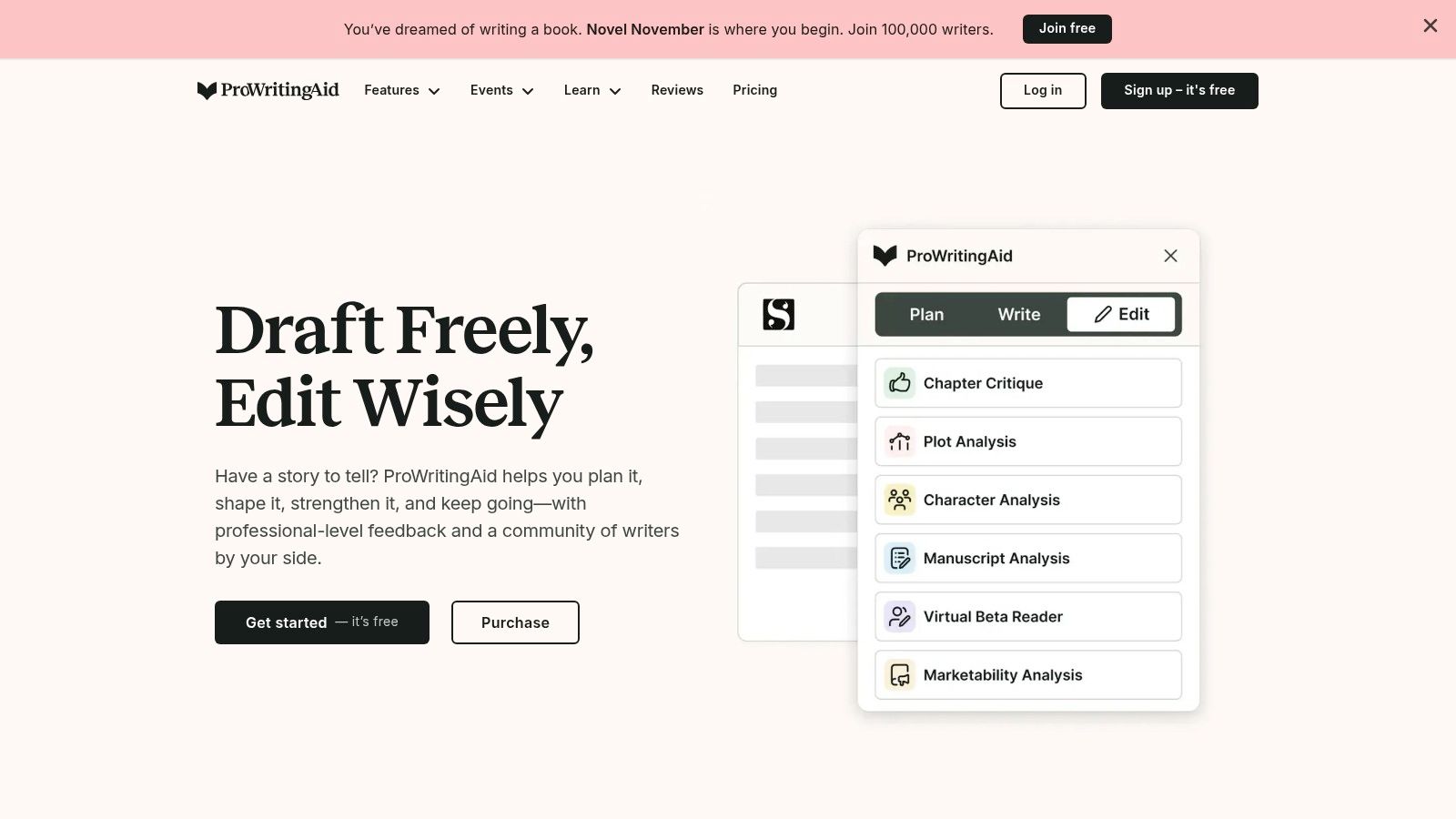
ProWritingAid is what I'd choose for long drafts that need diagnosis, not just cleanup. It's closer to a writing coach than a quick inline corrector. Novelists, nonfiction writers, and people editing reports or essays usually get more value from it than someone firing off Slack messages all day.
Its strength is depth. The reports on style, pacing, repetition, consistency, and readability help when your draft is structurally messy, not just grammatically rough.
Best for authors and long-form editing
ProWritingAid makes more sense in a deliberate editing pass than in rapid messaging. The native Mac desktop app helps, but the full experience still feels strongest when you're working in supported integrations like Word, Google Docs, or the browser. If your ideal workflow is “scan the chapter, review reports, revise in batches,” it fits well.
That also means it's not the cleanest answer for people searching for a lightweight grammar checker for Mac that follows them everywhere. It can do a lot, but it doesn't disappear into the background the way a menu-bar utility can.
- Good fit: authors, editors, academics, and content teams working on long documents
- Less ideal: short-form communication across native Mac apps
- Main value: detailed reports that reveal habits, not just isolated mistakes
ProWritingAid is excellent when you want to understand why the writing feels off, not merely where the typo is.
The downside is friction. The interface is heavier, the report set takes time to learn, and AI-assisted extras still depend on online access. For a fast cross-app Mac workflow, it can feel like too much tool. For manuscript work, that extra weight is often the reason to use it.
3. LanguageTool
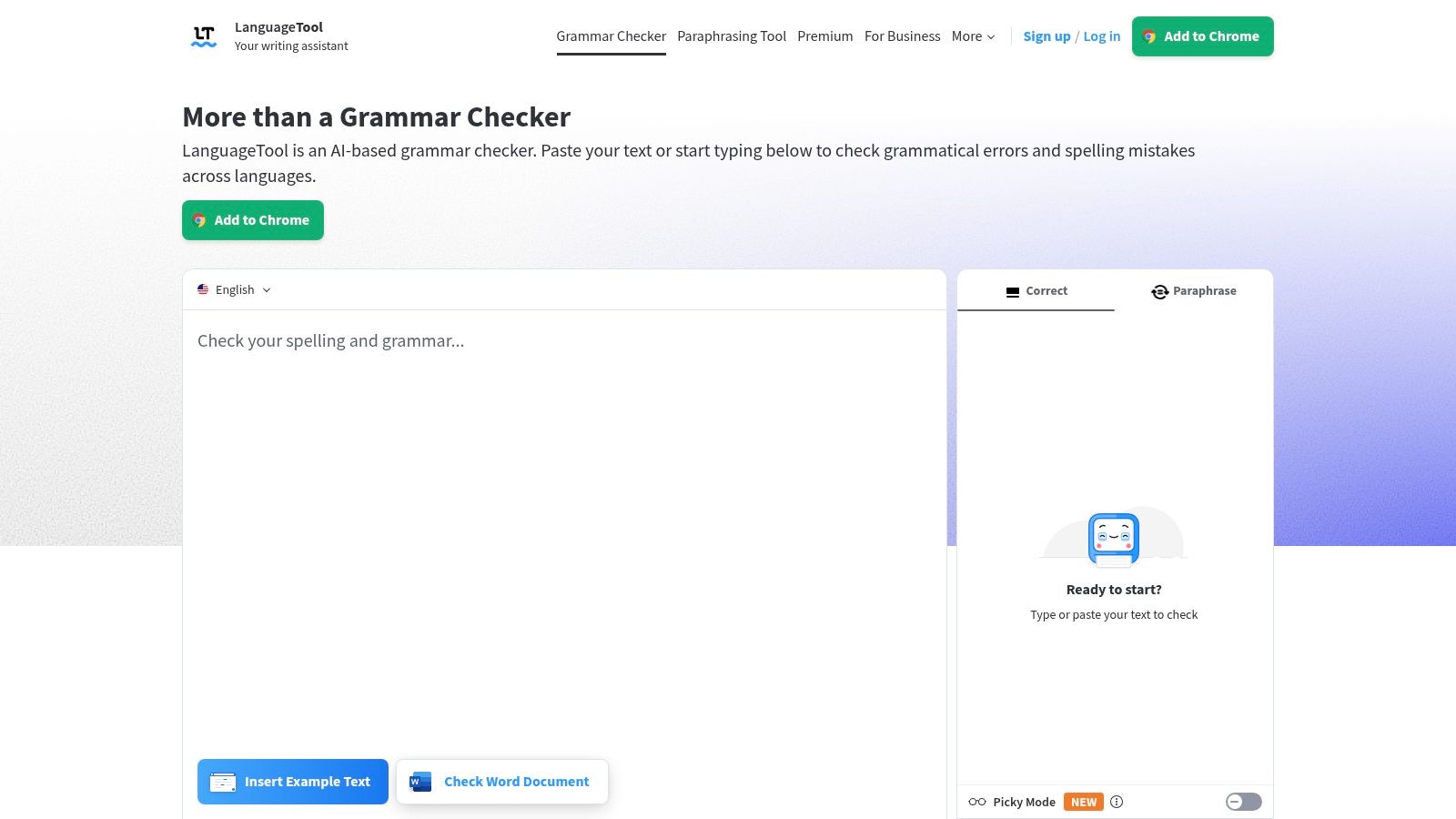
A common Mac writing day jumps between Mail, Slack, Google Docs, Word, and a browser form. LanguageTool handles that kind of mixed workflow better than tools that only shine inside one editor, especially if you switch languages during the day.
LanguageTool is one of the more practical choices here for multilingual writers. The value is not just that it supports multiple languages. It also gives Mac users several ways to work: a macOS app, a web editor, browser coverage, and integrations for Word and Google Docs. Coverage still depends on where you write, but the tool is easier to fit into a real Mac setup than products that assume everything happens in one document window.
What it does well is stay focused on correction. The suggestions tend to feel more like editing help than aggressive rewriting, which matters if you want to keep your own phrasing. For students, non-native English speakers, and international teams, that restraint is often a benefit.
The trade-off is consistency across apps. In supported environments, it feels capable and efficient. Outside those environments, it can feel like a tool you check with, rather than a utility that follows you everywhere on macOS. If you want broader context on lower-cost options, this guide to a free Grammarly alternative for Mac covers that buying angle well.
A practical way to judge LanguageTool on Mac is by asking three questions:
- Do you write in two or more languages every week?
- Are Word, Google Docs, and the browser where most of that writing happens?
- Are you comfortable sending text through a cloud-based service for analysis?
If the answer is yes to all three, LanguageTool is a strong fit.
If the answer to the second is no, the recommendation gets more conditional. A cross-app Mac utility such as RewriteBar is faster for users who live in native apps and want shortcut-driven editing without changing where they write. LanguageTool remains the better specialist if multilingual checking is the requirement that matters most.
Its limits are straightforward. Some stronger checks sit behind paid tiers, and the Mac experience is not equally polished in every app. Its upside is just as clear. For multilingual correction in common office and browser workflows, it is one of the more sensible Grammarly alternatives on Mac.
4. Antidote 12 / Antidote+

A typical Antidote user on Mac is editing something that cannot be casually wrong. A bilingual contract, a manuscript with heavy citations, a translation draft, a grant application. In that context, speed matters less than having correction, dictionaries, and usage guidance in one place.
Antidote works best for writers who treat language tools as reference software, not just inline cleanup. The Mac appeal is straightforward: local installation, strong English and French support, and a workflow that can still function well when you do not want every draft sent to a cloud service.
That local angle changes the privacy trade-off. If your work includes client material, internal documents, or regulated content, Antidote is easier to justify than browser-first tools that depend on constant online processing. The cost is convenience. It is heavier to set up, and the experience depends more on which Mac apps you use and whether the connector for that app behaves the way you need.
I would not put Antidote in the same bucket as RewriteBar. RewriteBar fits the Mac utility model better. Fast shortcut, quick edit, back to work. Antidote is closer to a dedicated writing environment you consult seriously, especially when wording, terminology, and bilingual accuracy need inspection rather than a quick rewrite.
Two questions usually decide the fit:
Are you writing in English and French regularly?
If yes, Antidote moves up the list quickly. Few alternatives handle that combination with the same depth.
Do you want a tool that follows you lightly across macOS, or one you deliberately open for higher-stakes editing?
If you want the first option, Antidote can feel slow. If you want the second, its depth starts to make sense.
The interface reflects that trade-off. It is dense. Some Mac users will appreciate the dictionaries and guides immediately. Others will open it once, see the amount of reference material, and realize they wanted a lighter assistant.
For authors, academics, translators, legal professionals, and bilingual office users, that density is often the reason to choose it. For short-form daily writing across notes apps, chat, and lightweight web fields, it is usually more tool than necessary.
5. DeepL Write
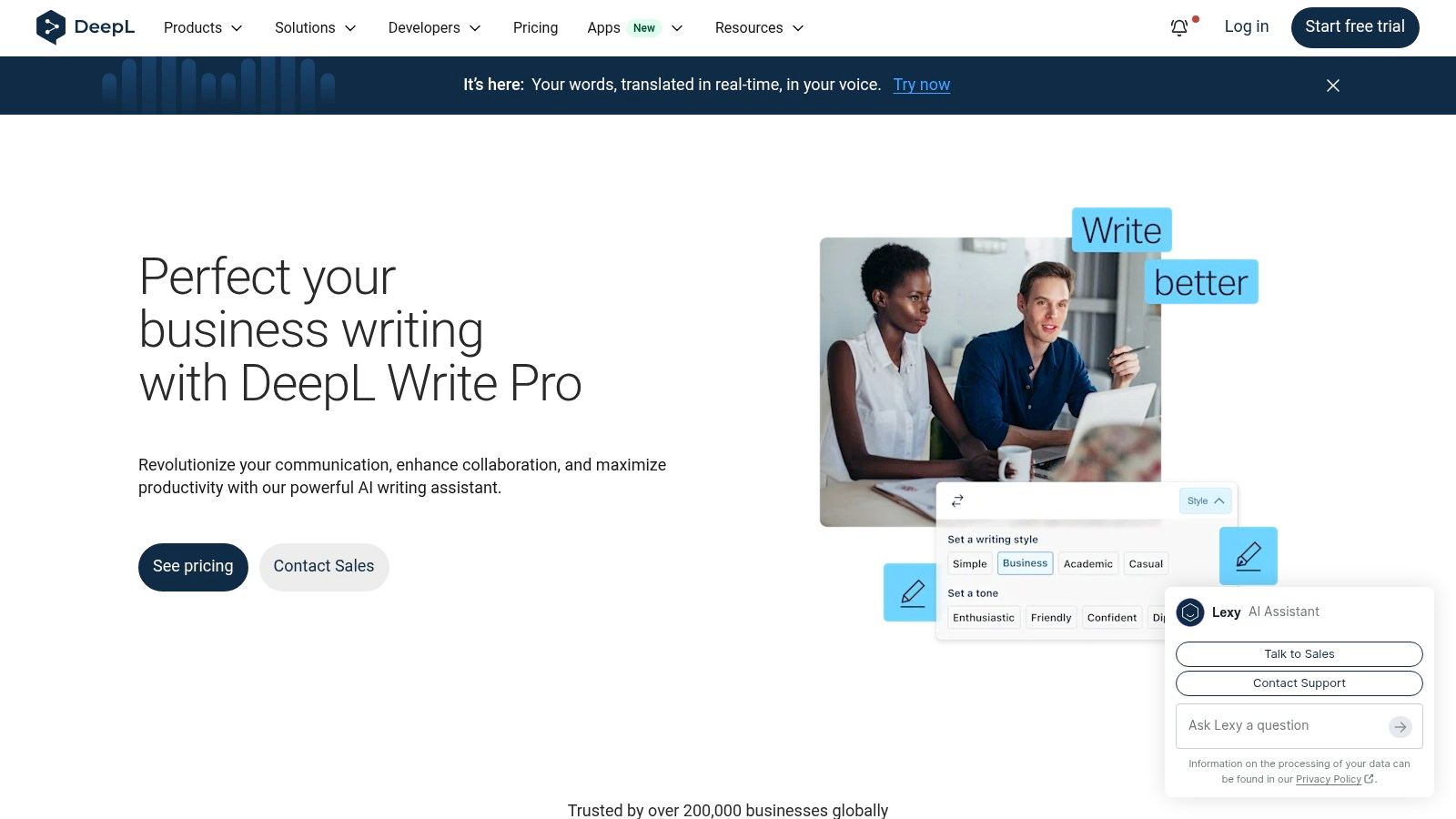
A common Mac writing pattern looks like this. Draft in Notion or Google Docs, paste a sensitive paragraph into an AI editor, accept a cleaner version, then paste it back. DeepL Write fits that pattern well.
Its value on Mac is not broad app coverage. It is sentence-level rewriting. DeepL Write tends to produce calmer, more natural edits than tools that focus on error flags and writing scores, especially for business English and multilingual communication. If the draft already says the right thing but sounds stiff, too direct, or slightly off in tone, DeepL Write usually helps quickly.
That also defines its limit. It behaves more like a destination than a native Mac writing layer. You bring text to it. It does not consistently follow you through native apps the way a utility-style tool can.
For some users, that is fine. Marketing managers refining client email. Founders rewriting investor updates. Support leads softening escalation replies. In those cases, rewrite quality matters more than in-app coverage.
For privacy-conscious Mac users, the workflow question matters more. If you prefer a tool that can work locally or stay close to the app where you typed the text, DeepL Write is less attractive. If you already use DeepL for translation and are comfortable sending text to a cloud service, the product makes more sense because the rewrite and translation steps sit close together.
I would place it in a narrower lane than RewriteBar. RewriteBar suits the fast macOS shortcut workflow better. DeepL Write is stronger when the job is to rephrase a finished paragraph for tone, clarity, or cross-language polish.
The buying logic is simple:
Choose DeepL Write if your work involves client-facing English, multilingual drafts, or frequent tone adjustment, and you do not mind moving text into a browser-based editor.
Skip it if you want offline use, native Mac reach across apps, or detailed explanations of why a sentence is wrong.
That trade-off is easy to miss in feature grids. On an actual Mac, it is the difference between a tool you keep open all day and a tool you visit for selected passages.
6. Microsoft Editor

A common Mac setup looks like this: Word for reports, Outlook for email, Teams in the browser, and a few native apps around the edges. In that environment, Microsoft Editor usually makes sense for one reason. It stays inside the Office workflow your team already uses.
That matters more than feature checklists. If drafts live in Word and sensitive client communication goes through Outlook, keeping editing inside those apps reduces copy-paste, extra accounts, and approval friction. For corporate Mac users, that convenience often beats a more flexible tool.
The trade-off shows up as soon as your writing spreads across macOS. Notes, Slack, Notion, Pages, and many native Mac fields are outside Microsoft Editor's natural home. You can extend coverage somewhat with the browser extension, but this is still an Office-centered product, not a Mac-wide writing layer like RewriteBar aims to be.
Privacy and data handling also follow that same boundary. If your company already trusts Microsoft 365 for documents and mail, Editor fits the existing policy path more easily than a separate writing service. If you prefer a tool that follows you across apps with less dependence on cloud-connected Office services, Microsoft Editor will feel narrower.
A better way to judge it is by workflow fit:
If you spend the day in Word and Outlook, Microsoft Editor is often enough.
If your Mac writing happens across many apps, it leaves gaps.
Its feedback is useful, but usually less instructive than tools built around writing improvement as the main job. Microsoft Editor helps polish office documents. It is less compelling for writers who want stronger style coaching, broad app coverage, offline-first habits, or a dedicated revision environment.
For Office-heavy teams, that limitation may not matter. For mixed Mac workflows, it usually does.
7. Hemingway Editor 3
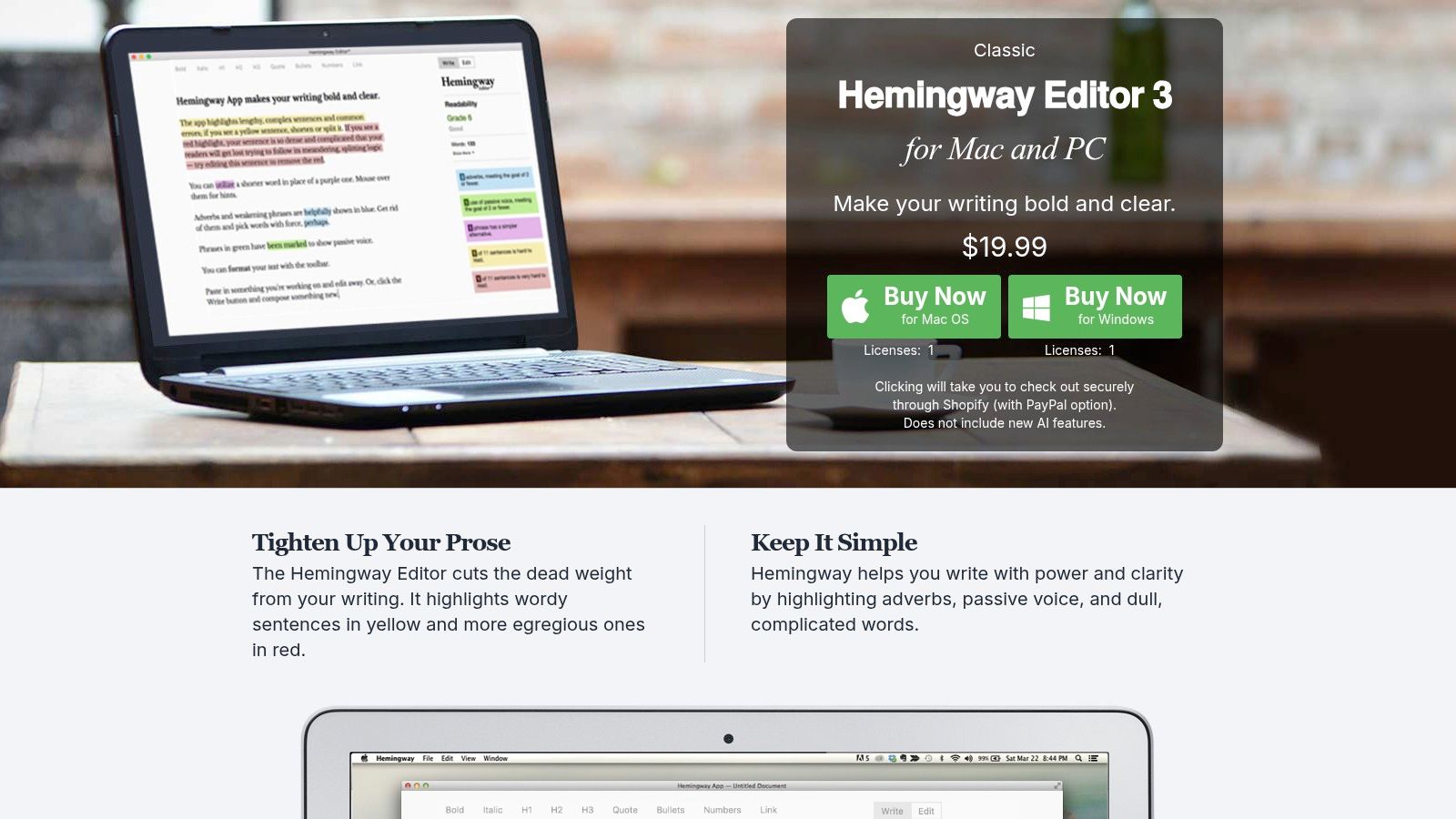
A common Mac writing problem looks like this: the draft is grammatically fine, but still tiring to read in a blog post, client email, or landing page. Hemingway Editor is built for that stage. It highlights long sentences, passive voice, adverbs, and dense phrasing so you can tighten the piece before it goes out.
That makes it narrower than Grammarly, but also easier to judge. Hemingway is a readability editor.
On Mac, that focus creates a clear trade-off. You do not get broad grammar coverage across apps, team workflow features, or multilingual correction. You get a dedicated place to paste or draft text, review the friction points, and simplify the writing. For writers who already have grammar handled elsewhere, that can be enough.
The desktop app also suits privacy-conscious and offline-leaning workflows better than cloud-first assistants. If you regularly work on a flight, in a locked-down environment, or do not want every sentence sent out for processing, Hemingway has an advantage. If your priority is system-wide help inside Mail, Slack, Notes, or Pages, it will feel limited compared with tools designed to follow you across macOS.
Its best use on a Mac is as a second-pass editor. Draft in your usual app. Then run the piece through Hemingway before publishing or sending. That workflow fits the same broader category as other writing apps for Mac that support focused editing stages, but Hemingway stays firmly in the readability lane.
A practical read on it:
- Strong fit: bloggers, content marketers, students, and business writers who need plainer English
- Weak fit: multilingual users, teams that need shared review flows, and anyone expecting grammar help in every Mac app
- Best reason to choose it: it catches sentences that are technically correct but harder to read than they need to be
I would not pick Hemingway as the only Grammarly alternative for Mac. I would pair it with a broader checker, or with RewriteBar if cross-app Mac coverage matters, and use Hemingway specifically for final clarity passes. That is where it earns its place.
8. QuillBot
QuillBot earns its place on a Mac for one specific job: turning a rough sentence into several usable versions fast. If you are rewriting a lecture note into an email, trimming a product description for social, or softening a direct message before sending it, QuillBot is often quicker than a grammar-first checker.
That speed comes with a trade-off on macOS. QuillBot is more useful as a destination you open for a rewrite than as a tool that follows you cleanly through every app you use. If your day moves between Apple Notes, Slack, Notion, Pages, and Mail, the workflow usually involves copying text in, reviewing options, then pasting the result back out.
Used carefully, that is fine. Used casually, it can create problems.
A common example is rewriting a Slack update to make it sound more polished, then pasting that version into Notion or an email thread without checking the tone. The message may become more formal, less direct, or slightly further from what you meant. In academic work, the risk is accuracy. In team communication, the risk is sounding unlike yourself or softening a point that needed precision.
QuillBot also sits on the cloud-first side of this category, so it is less appealing for people who prefer offline editing or want tighter control over where text goes during drafting.
What it does well:
- Fast rewrites: alternative phrasings, shorter versions, tone shifts, and summaries
- Best Mac use case: rewriting text between apps when the extra copy-paste step is acceptable
- Less convincing as a Grammarly replacement: broad in-place correction across macOS, final nuance checks, and policy-sensitive wording
For students, marketers, and multilingual writers trying to get to a clearer draft faster, QuillBot can be useful. For authors or professionals who need tighter control over meaning inside the app where they already write, tools like RewriteBar, ProWritingAid, or LanguageTool usually fit the Mac workflow better. QuillBot works best as a rewrite assistant, not as the main editing layer for the whole system.
9. Sapling
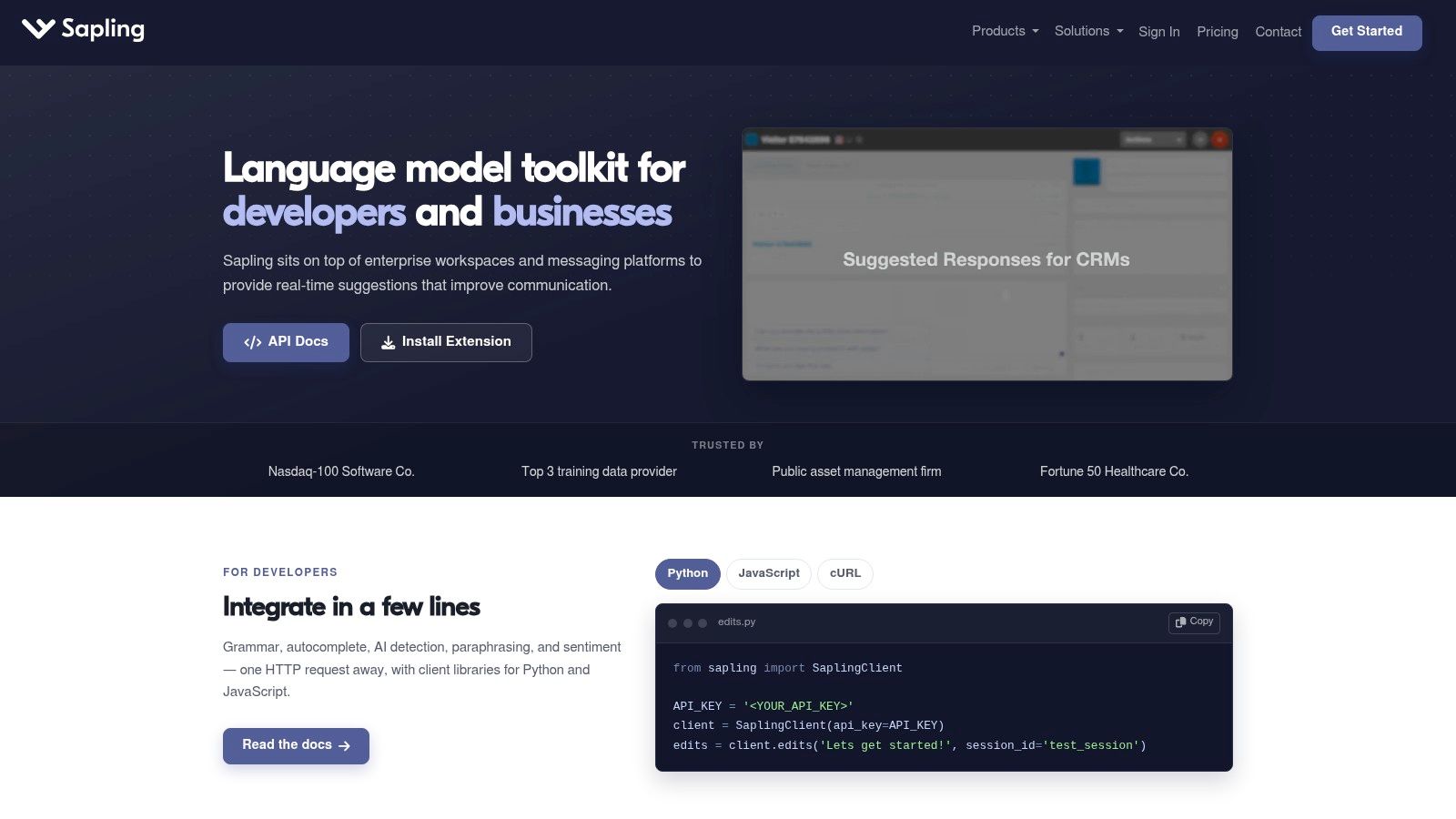
A Mac writer using Notes, Ulysses, Apple Mail, and Slack will run into Sapling's boundary quickly. It is strongest inside business software, not as a writing layer that follows you across macOS.
Sapling is built for customer communication. The product makes the most sense in support queues, sales inboxes, CRM workflows, and other places where teams send similar replies all day and want faster drafting, approved snippets, and more consistent wording. In that setting, the Mac question is less about native app design and more about whether Sapling appears inside the tools your team already lives in.
That distinction matters.
For an individual writer comparing Grammarly alternatives on Mac, Sapling can feel incomplete because it does not behave like RewriteBar or other tools that stay closer to the operating system. You do not get the same "works almost anywhere I type" experience. You get a team-oriented assistant that is useful where integrations exist, and much less useful where they do not.
A practical way to judge it is by workflow:
If your day happens in browser tabs, Google Docs, and business platforms with repeat customer messaging, Sapling is a serious option. If your writing moves between native Mac apps, private drafts, offline work, and long-form editing, it is a weaker fit.
The trade-off is straightforward:
- Teams get autocomplete, snippets, shared standards, and admin visibility
- Individual Mac users give up broad system-wide coverage
- Privacy and text handling depend more on the connected services and cloud workflow than on a local-first editing model
Sapling is easy to recommend for support managers, revenue teams, and operations groups that care about reply speed and consistency more than prose refinement. It is much harder to recommend as the main Grammarly replacement for a solo Mac user who wants in-place editing across apps, stronger offline behavior, or tighter control over where draft text goes.
10. Ginger
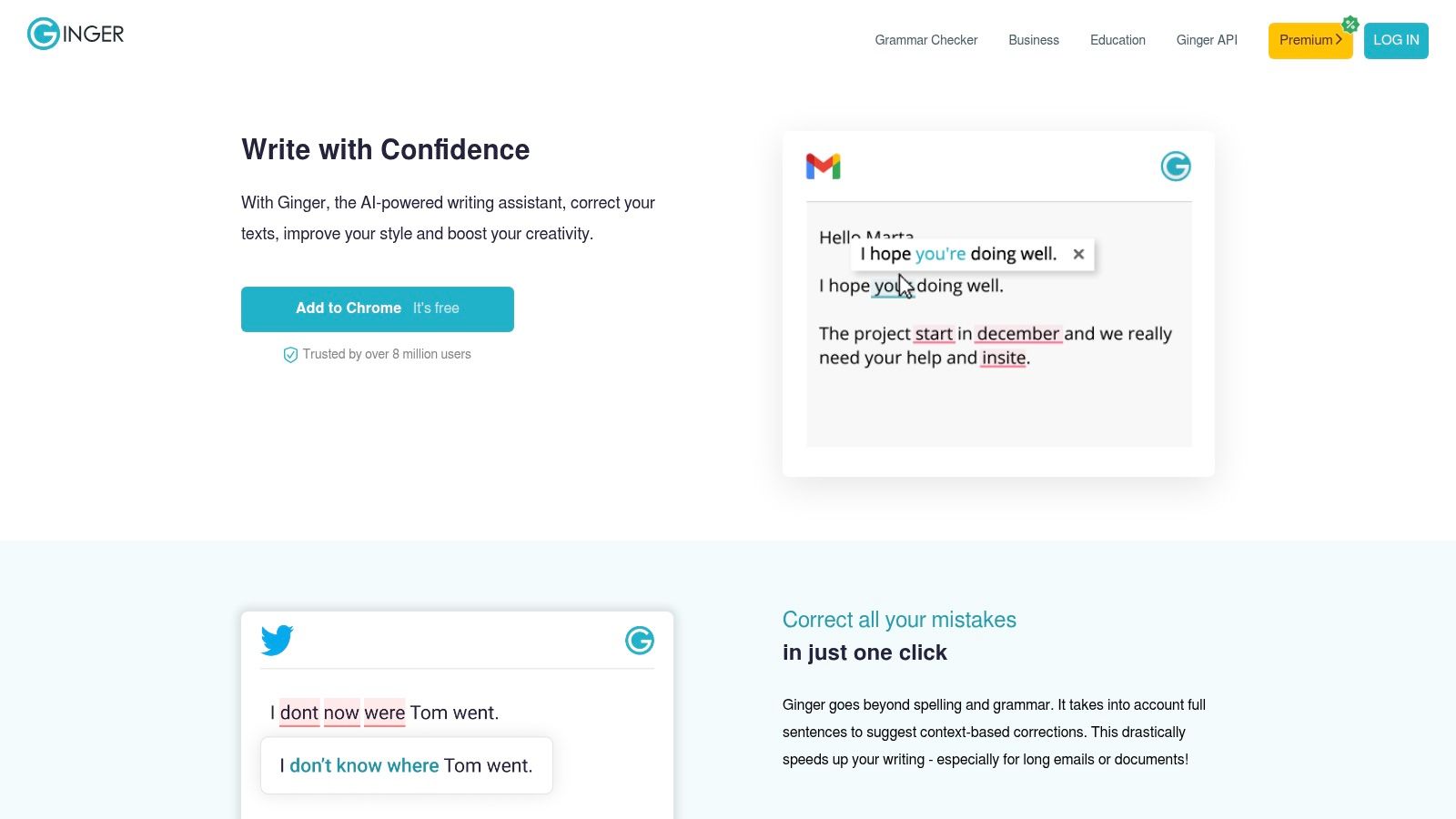
Ginger has been around long enough to appeal to users who want something familiar and straightforward. It covers the basics: grammar checks, spelling fixes, sentence rephrasing, synonyms, and built-in translation.
That combination gives it practical value for day-to-day writing, especially if you move between desktop and mobile and don't need a highly specialized workflow.
Simple and serviceable across devices
Ginger works best when you want quick language support rather than a full writing environment. The translator is useful for people who write in English but occasionally need help shifting across languages. The Mac client keeps it relevant in this conversation, even if the broader ecosystem isn't as deep as some competitors.
Its weakness is depth. Compared with tools like ProWritingAid or LanguageTool, the analysis is lighter. Compared with Mac-first utilities, the workflow feels less specialized.
Ginger is the kind of tool people keep using when they value convenience over customization.
Choose it if your needs are simple. Skip it if you want detailed reports, serious local privacy options, or more advanced Mac automation.
Top 10 Grammarly Alternatives for Mac, Comparison
| Product | Core features / Characteristics | UX / Quality (★) | Price / Value (💰) | Target audience (👥) | Unique selling points (✨) |
|---|---|---|---|---|---|
| RewriteBar 🏆 | Menu-bar AI; select-and-rewrite; multi-step workflows; 500+ languages | ★★★★★, fast, lightweight | 💰 Free trial; one-time $29 (Std) / $59 (Pro); Gateway $40/yr | 👥 macOS users: devs, creators, non‑native speakers, founders | ✨ Local & cloud model choice; side-by-side diffs; PopClip; privacy-first |
| ProWritingAid | 20+ diagnostic reports; Mac app; Word/Docs plugins | ★★★★☆, deep diagnostics | 💰 Subscription & lifetime options; frequent discounts | 👥 Authors, long-form writers, editors | ✨ In-depth style, pacing & consistency reports |
| LanguageTool | 30+ languages; native Mac app; web & plugin support | ★★★★☆, strong multilingual checks | 💰 Freemium; Premium & team plans | 👥 Multilingual writers, teams, educators | ✨ Excellent language coverage; privacy-minded |
| Antidote 12 / Antidote+ | Local macOS corrector; extensive dictionaries & guides | ★★★★☆, robust offline references | 💰 One-time desktop + Antidote+ (annual subscription) | 👥 Academics, bilingual EN‑FR professionals | ✨ Deep reference resources; offline workflow |
| DeepL Write | Rewrite & tone control; integrates with DeepL Translate | ★★★★☆, polished business rewrites | 💰 Free; DeepL Pro / Write Pro for enterprise | 👥 Business writers, marketers, translators | ✨ High-quality rewrites; enterprise privacy options |
| Microsoft Editor | Grammar/style in Word & Outlook; browser extension | ★★★☆☆, solid baseline in Office apps | 💰 Included with Microsoft 365 subscription | 👥 Microsoft 365 users, office professionals | ✨ Seamless Office integration |
| Hemingway Editor 3 | Readability grading; offline Mac app; .docx export | ★★★★☆, clarity & concision focused | 💰 One-time low-cost purchase | 👥 Bloggers, students, nonfiction writers | ✨ Lightweight offline readability tool |
| QuillBot | Paraphrasing modes; summarizer; plagiarism & citation tools | ★★★★☆, strong paraphrase workflows | 💰 Freemium; Premium subscription | 👥 Students, content creators, researchers | ✨ Multi-mode paraphrasing + broader toolkit |
| Sapling | Grammar + real-time autocomplete; snippets; team analytics | ★★★★☆, business-focused assist | 💰 Subscription (Pro / Enterprise) | 👥 Support teams, sales, enterprises | ✨ Autocomplete everywhere; team/admin controls |
| Ginger | Grammar & rephrase; built-in translator; Mac & mobile apps | ★★★☆☆, quick pragmatic fixes | 💰 Freemium; Premium subscription | 👥 General writers needing quick fixes; multilingual users | ✨ Integrated translator (40+ languages) |
Match the Tool to the Way You Write
The best Grammarly alternative for Mac depends less on headline features and more on where you write, how private the text is, and how much friction you'll tolerate. That's the pattern across this whole category. Review data shows Grammarly has a strong position, with G2 listing a 4.7 out of 5 average from 14,073 reviews, but those same large-scale review themes also point to recurring complaints around obstruction, access limits, and context misses. That's exactly why Mac users keep looking for alternatives that feel less intrusive and more native.
RewriteBar is the strongest overall pick for Mac users who want speed, cross-app use, and control over where text goes. It's the option I'd choose when the workflow starts in one app and finishes in three others. The combination of menu-bar access, side-by-side review, reusable actions, and support for either local or cloud processing solves a very Mac-specific problem. It helps you edit where you already work instead of sending you somewhere else.
ProWritingAid is the better choice for long-form diagnostics. If you write books, essays, reports, or article drafts and want detailed feedback on style and structure, it gives you more editorial depth than a lightweight rewriter.
LanguageTool is the safest recommendation for multilingual checking. It's practical, widely integrated, and a good fit for non-native English speakers or teams writing across languages.
Antidote is the specialist tool for offline reference-heavy work, especially in English-French contexts. It won't feel lightweight, but that's not what it's for. It's for accuracy, nuance, and desktop-class language support.
Hemingway is the clarity tool. Use it when your writing is technically fine but still hard to read. Microsoft Editor makes the most sense in Word and Outlook-heavy organizations. DeepL Write is strong for polished tone and business-facing rewrites. QuillBot is useful for paraphrasing and idea reshaping, as long as you verify meaning. Sapling is the team choice for support and response workflows. Ginger remains a reasonable simple option for basic correction plus translation.
One caution applies to all of them. Apple's built-in Writing Tools are getting more attention, but they aren't a universal replacement. A TidBITS reader poll on Apple Intelligence use reported mixed real-world usage, and Apple's own platform limits mean availability depends on newer hardware and OS support. On a Mac, “built in” doesn't always mean “works for my setup.”
Before you commit, do four things:
- Test your real apps: Try the tool in the apps you use most, not just in its demo editor.
- Check privacy flow: Confirm whether text stays local, goes to the vendor, or goes to your chosen model provider.
- Compare cost structure: One-time licenses and subscriptions feel very different after a few months.
- Review every rewrite: No tool on this list should publish or send text without a human check.
If you choose based on workflow first, the decision gets much easier.
If you want a Grammarly alternative for Mac that works where you write, RewriteBar is worth trying first. It gives you cross-app rewriting from the menu bar, supports both local and cloud AI, and lets you fix grammar, tone, clarity, translation, and repeatable text tasks without leaving your current app.

More to read
How to Use AI for Writing (2026 Practical Workflow)
Learn how to use AI for writing with a step-by-step workflow covering prompt templates, editing, privacy options, and ready-to-use examples for every task.
How to Improve Writing Speed Without Sacrificing Quality
Learn how to improve writing speed with proven workflows, typing tricks, and AI tools to draft faster, edit smarter, and stay in flow.
How to Improve Your Writing with Practical Workflows
Learn how to improve your writing with proven workflows, editing exercises, and AI-assisted shortcuts that fit the way you already write.
Tags
Written by
Mathias MichelPublished
September 21, 2026