How to Improve Writing Speed Without Sacrificing Quality
Learn how to improve writing speed with proven workflows, typing tricks, and AI tools to draft faster, edit smarter, and stay in flow.
Written by
 Mathias Michel
You've got a deadline, a blank document, and a familiar problem: the first sentence takes too long, every paragraph invites a rewrite, and a short email somehow consumes the best part of the morning. Typing faster helps only when your thoughts are ready. Most writing slows down earlier, during planning, word selection, switching between tasks, and correcting sentences before the idea has fully landed.
The practical answer to how to improve writing speed isn't pressing keys harder. It's removing the pauses that interrupt composition, reducing decisions before drafting, and separating creation from correction. Once those frictions are visible, you can measure progress through steadier output, fewer stops, and shorter editing sessions without lowering the quality of the finished work.
Why Writing Feels Slow and How Speed Really Works
A writer facing a deadline usually blames the keyboard. The bottleneck often appears between thoughts. You outline a point, question whether it's the right point, search for a better phrase, reread the previous paragraph, revise it, and only then continue. The cursor moves, but the work barely advances.
Writing combines several activities: planning ideas, translating them into language, programming the text through typing or speech, reading what you've produced, and editing it. Research on computer-based writing describes these as distinct parts of the process, and higher performers tend to show shorter pauses and steadier keystroke throughput, not merely faster hand movement. That distinction changes the solution. You don't need to force every phase to happen faster at once. You need to stop making them compete for attention.
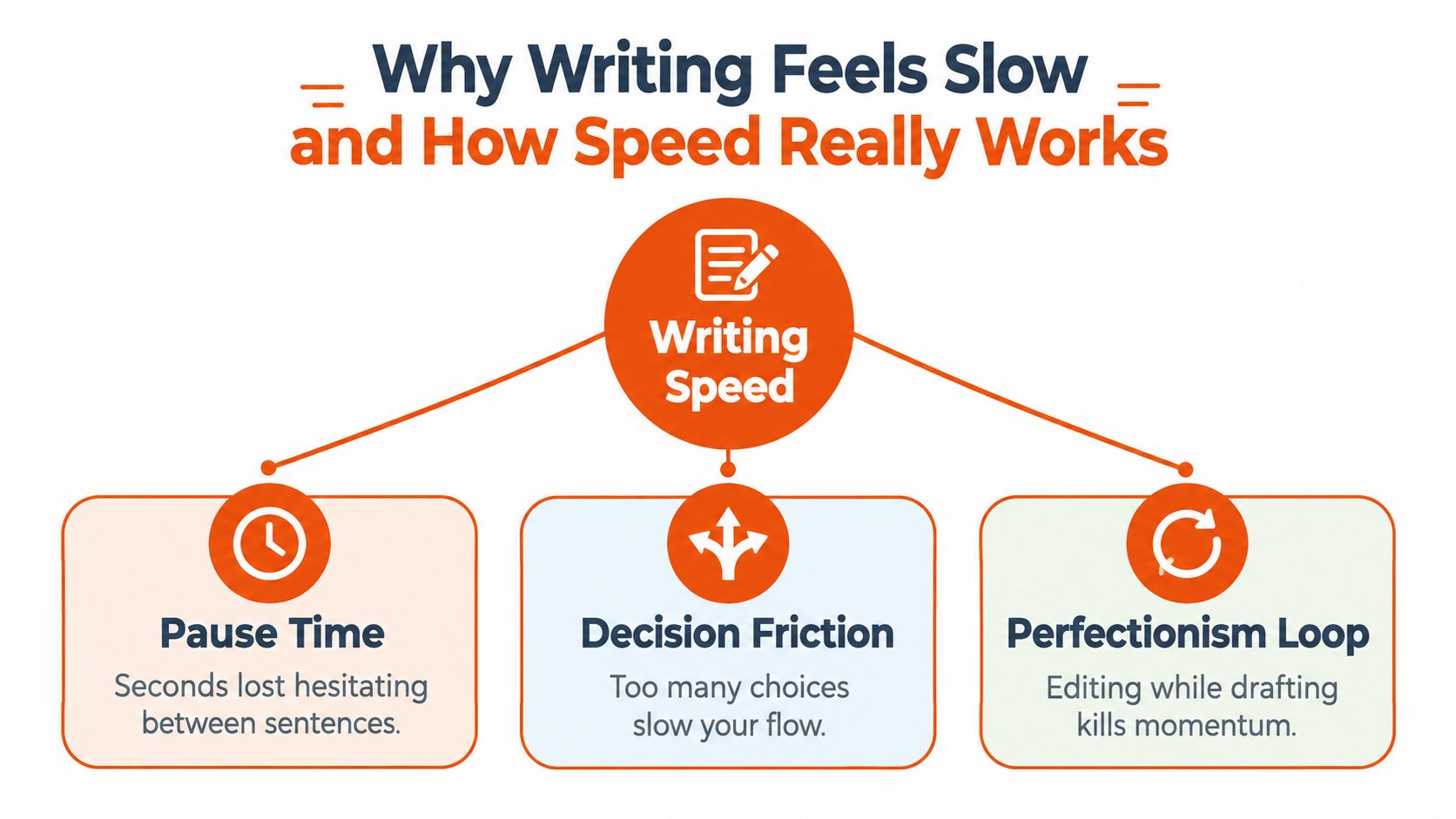
The three sources of delay
Pause time is the silence between bursts of text. You may know the idea but hesitate over the opening, the transition, or the exact verb. Those gaps accumulate, especially when you write in short fragments and repeatedly restart.
Decision friction comes from unresolved choices. If you haven't decided who the reader is, what the document must accomplish, or which points belong in it, every sentence becomes a fresh strategic problem. A small amount of planning removes many of those choices from the drafting stage.
The perfectionism loop starts when you edit a sentence before you've completed the thought behind it. You replace a word, reread the line, adjust the tone, and lose the next idea. The revision may improve one sentence while making the whole session slower and more mentally expensive.
Practical rule: Draft with enough accuracy to preserve meaning, then reserve judgment for a defined editing pass.
Typing still matters. Touch typing shifted text entry away from visual key searching and toward automated finger placement. The historical record includes Frank McGurrin's reported 98.11 words per minute in the 1888 Cincinnati typewriting contest, followed by reported blindfolded typing at 125 WPM that same year, as documented in this history of recorded typing speed. Later milestones, including Stella Pajunas at 216 WPM in 1946, show what keyboard familiarity and sustained technique can eventually produce, but record speeds aren't the useful target for most writers.
For everyday work, fluency means keeping attention on the idea rather than the mechanics. Clear sentence goals, deliberate pauses, and fewer correction loops matter more than chasing a leaderboard. A useful companion is this guide to clarity in writing, because clearer thinking often removes the wording decisions that make drafts drag.
Build a Fast Drafting Foundation Before You Type
Fast drafting starts before the document opens. Spend a short setup period deciding what the reader needs, what you're promising, and which points will support that promise. This isn't elaborate outlining. It's a way to prevent the blank page from asking you ten questions at once.
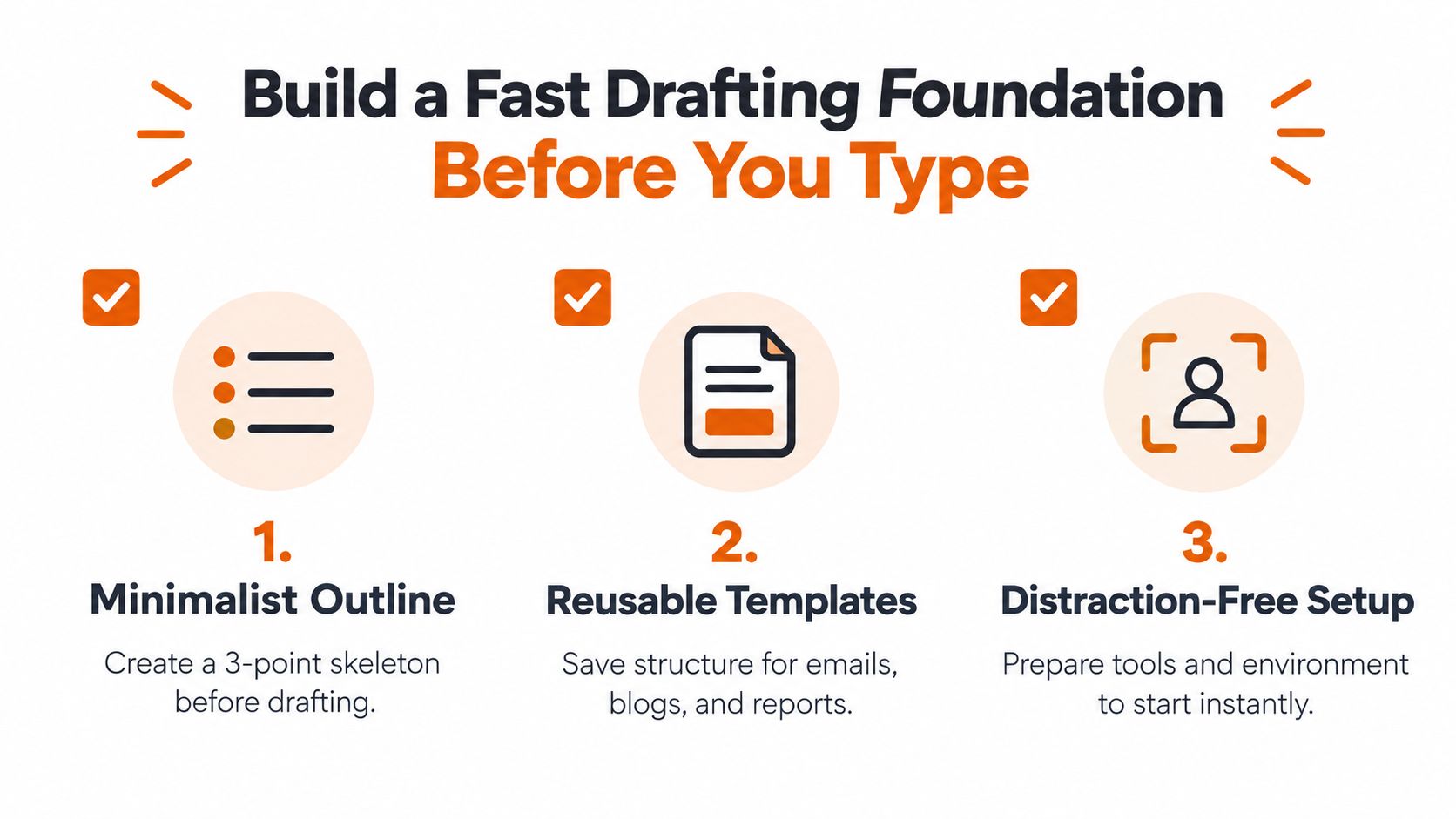
Use a three-point skeleton
Write three plain-language notes:
- The outcome: What should the reader understand, decide, or do?
- The support: Which facts, examples, or reasons make the outcome credible?
- The close: What action, conclusion, or next step should follow?
For an internal product update, the skeleton might read: “Explain the release, show the user impact, ask engineering to confirm timing.” Those notes are enough to start. If the document grows, add detail beneath the relevant point instead of creating a complex outline that becomes another document to maintain.
Scope deserves its own line. Write down what you won't cover. A non-native English speaker preparing a client email might decide to explain the delivery delay and offer the revised date, while leaving the full internal history for a separate note. That boundary prevents useful but irrelevant thoughts from interrupting the draft.
Turn repeat work into templates
Templates remove structural decisions, not judgment. Create a reliable starting shape for the writing you produce often:
- Email: context, key message, requested action, deadline or closing.
- Blog post: reader problem, explanation, practical process, conclusion.
- Product specification: problem, user need, proposed behavior, edge cases, acceptance criteria.
- Meeting follow-up: decisions, owners, open questions, next actions.
Keep placeholders visible. Bracketed notes such as “[add example]” or “[confirm date]” let you continue when a detail needs research or another person's input. Searchable placeholders are especially useful in longer drafts because they turn forgotten gaps into a clear finishing list.
Prepare the writing environment
Collect the source material before you begin. Open the relevant notes, copy essential references into a scratchpad, and close unrelated tabs. Put the document in a distraction-free view, choose whether you'll type or dictate, and decide where unfinished questions will go.
Context switching creates hidden work. A creator moving between a content brief, analytics, messages, and a draft may spend more time rebuilding the mental state for each task than composing. A small capture note solves this: when an idea appears elsewhere, record it in one inbox and return to the active document.
Use this quick start checklist:
- Audience: Name the reader and their current problem.
- Purpose: Write the result in one sentence.
- Skeleton: Add three supporting points.
- Unknowns: Mark missing details instead of researching immediately.
- Template: Load the structure that matches the document.
- Finish line: Define what “done for this pass” means.
The setup is successful when it makes the first sentence obvious. If you're still debating the document's purpose after outlining, the outline needs clarification rather than more detail.
Draft Faster Without Breaking Your Flow
Once the cursor is moving, protect movement. Drafting is the phase where you generate language, not the phase where you prove every sentence deserves to survive. Writers who stop to polish each line trade short-term comfort for repeated restarts.
Choose your input method deliberately
Touch typing is valuable because it reduces visual searching and keeps your attention on the sentence. Don't treat speed and accuracy as enemies, though. A fast passage that creates a large correction burden may take longer overall than a measured draft with clean keystrokes. A 2024 analysis of typing performance identifies accuracy, text length, and word frequency as important variables, which supports training that reduces errors and builds familiarity with recurring language patterns. You can review the study on typing performance for that analysis.
Dictation can work well for exploratory writing, personal notes, and first-pass explanations. It's less reliable for dense technical language, exact names, formatting, or heavily structured documents unless you're willing to clean the transcript. Use it when speaking helps you maintain momentum, not because it eliminates editing.
Write in controlled bursts
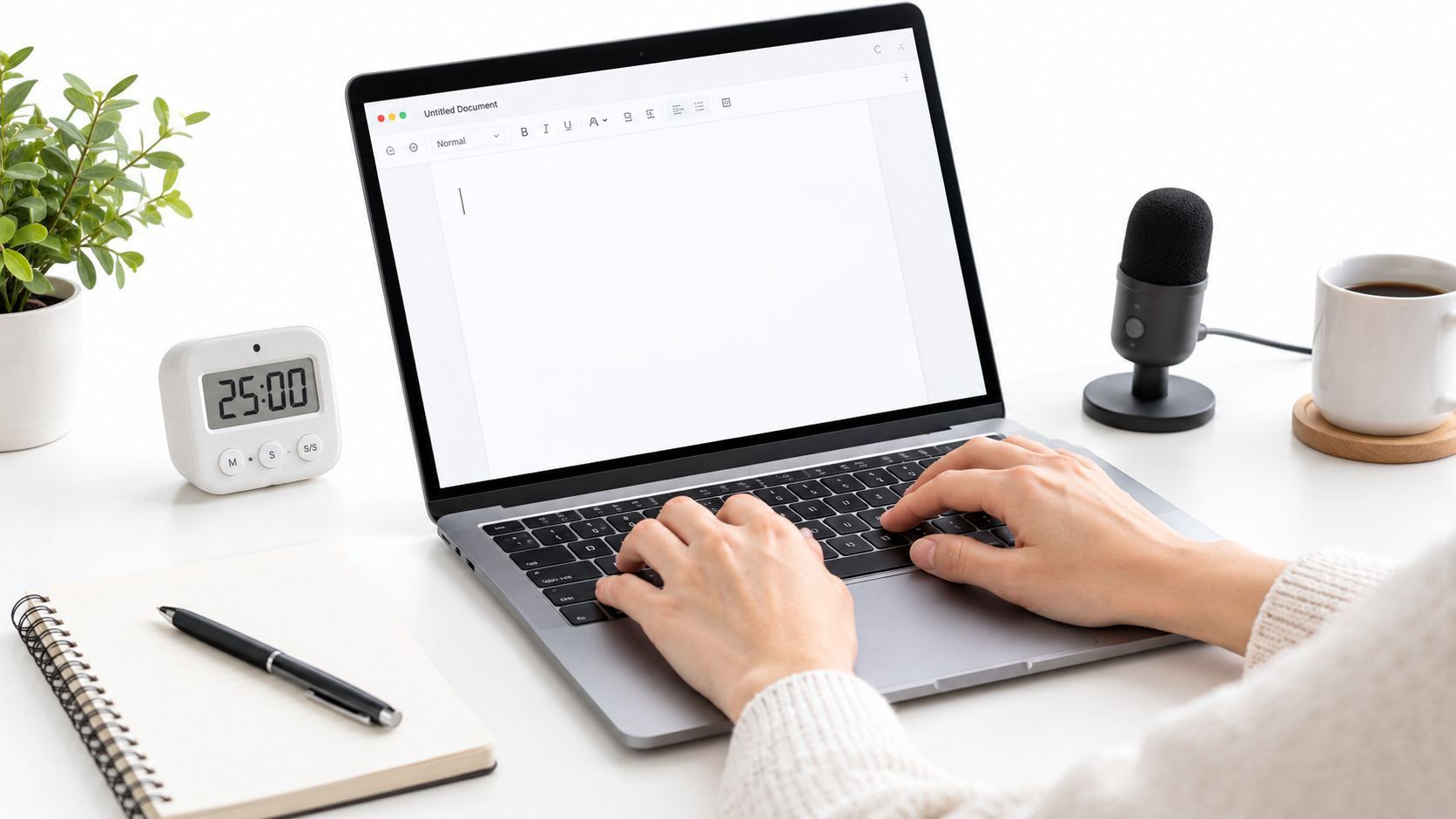
Set a short, defined drafting window and keep your hands moving until it ends. The exact duration matters less than the rule: no grammar repairs, source searches, or sentence-level rewrites during the burst. If you hit a missing detail, insert a marker such as “[verify terminology]” and continue with the next idea.
Keyboard shortcuts preserve flow better than reaching for a mouse. Learn the commands you use repeatedly for navigation, selection, undo, and moving between fields. In a browser-based workflow, text expansion can also help with recurring phrases, but review inserted language so automation doesn't create a new correction problem.
During a draft, a visible placeholder is progress. An invisible hesitation is lost momentum.
Fatigue changes performance across the workday and workweek. Office-work research has found that typing behavior varies with both speed and accuracy over time, so a sustainable schedule treats attention as a limited resource rather than assuming every hour has the same output. Put demanding composition in your strongest period when possible, then use lower-energy periods for source gathering, formatting, or routine cleanup.
The useful benchmark for many writers is functional fluency, not elite performance. The historical and research record places average typing around 40 WPM, while the cited range for practical productivity gains is often 40 to 70 WPM, where fewer pauses and corrections can free attention for composition. Elite examples, including Pajunas at 216 WPM, demonstrate the ceiling of trained technique, not a reasonable daily requirement.
For more environmental tactics, use this guide to distraction-free writing. The objective is simple: keep the next sentence easier to write than the decision to stop.
After the main drafting window, record what interrupted you. Was it missing information, uncertainty about structure, difficult wording, or a mechanical error? The answer tells you which part of the system needs repair.
Here's a visual demonstration of a clean, keyboard-focused drafting setup:
<iframe width="100%" style="aspect-ratio: 16 / 9;" src="https://www.youtube.com/embed/3tMuGspXuRQ" frameborder="0" allow="autoplay; encrypted-media" allowfullscreen></iframe>Edit in Batches to Save Hours Every Week
Editing while drafting feels responsible because every sentence looks better immediately. It also forces you to alternate between generating ideas and evaluating them. That switch creates rereading, and rereading exposes more opportunities to revise before the underlying structure is finished.
A batch system limits that loop. Finish enough material to see the argument, then review it with a defined purpose. Typing research emphasizes that reducing error correction is central to performance, while writing-process research shows that fluency depends on pauses and throughput as well as language quality. The practical implication is straightforward: improve the draft's movement first, then polish its surface.
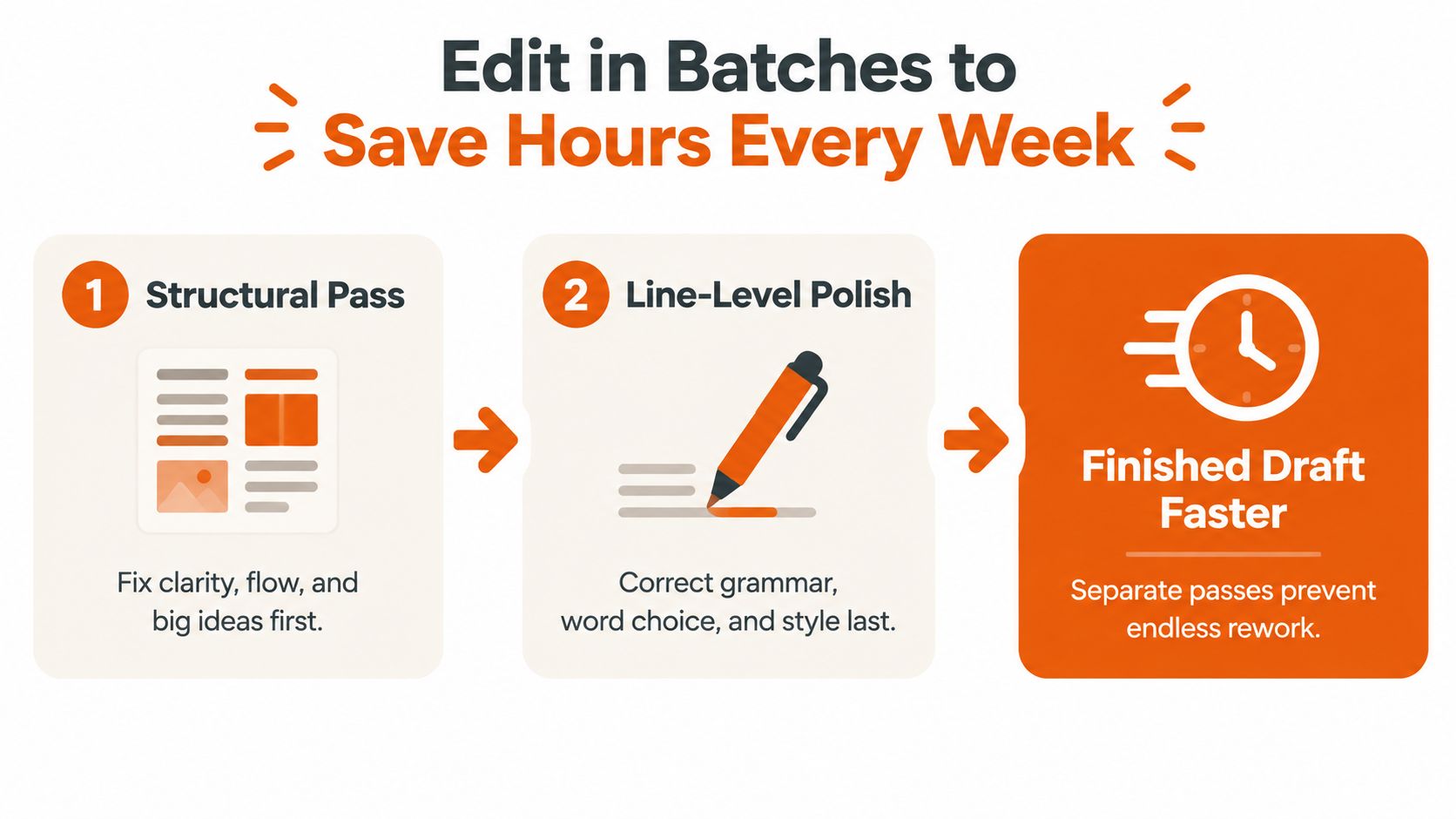
Pass one fixes the document
Read the draft for structure, not grammar. Ask whether each section earns its place, whether the reader can follow the sequence, and whether the conclusion matches the promise made at the beginning. Move, combine, cut, or expand blocks of content before touching individual words.
For an email, this might mean moving the requested decision into the opening and placing background afterward. For a content draft, it might mean deleting a detour that explains a related concept but doesn't support the reader's immediate question.
Use a structural checklist:
- Purpose: Can you state the document's point without qualifying it?
- Order: Does each paragraph prepare the reader for the next?
- Evidence: Does every major claim have the needed support?
- Action: Is the next step visible to the reader?
- Length: Does the draft stop when the job is complete?
Pass two cleans the language
Only after the structure holds should you edit at line level. Search for repeated words, vague verbs, missing articles, awkward prepositions, inconsistent tense, and sentences that carry too many ideas. Non-native English writers often benefit from checking collocations and standard business phrases rather than translating each sentence word for word.
A side-by-side comparison helps here. Keep the original visible while evaluating a revised version, especially when using grammar software or AI. The goal isn't to accept every suggestion. It's to see whether the change improves meaning, tone, and naturalness for the intended reader.
Time-box each pass. A fixed review window creates a stopping condition, while an open-ended “make it perfect” instruction invites endless rework. If a sentence remains uncertain after the line pass, mark it for a later decision instead of reopening the entire document.
Edit in the order that prevents rework: meaning first, structure second, wording last.
Batching also makes patterns measurable. Track which errors recur and turn them into a personal checklist. If your emails repeatedly bury the request, add “request in opening” to the template. If your drafts contain unsupported transitions, add a structural check for the relationship between paragraphs. Each recurring correction should eventually become a preventive rule.
Use AI and Productivity Tools to Accelerate Everyday Writing
AI is most useful when it handles small, repeatable transformations without taking over the thinking. A writer still needs to choose the message, audience, and facts. The assistant can reduce friction around grammar, tone, translation, summarization, and formatting after the intent is clear.
A useful comparison looks like this:
| Slow task | Manual approach | AI-assisted workflow |
|---|---|---|
| Tone adjustment | Rewrite the whole message while comparing versions | Select the text and request a specific tone |
| Grammar cleanup | Search sentence by sentence | Run a focused correction pass, then review changes |
| Translation | Move between apps and reconstruct formatting | Translate the selected passage in place |
| Summary | Reread and compress from memory | Generate a concise version, then verify the important points |
| Reformatting | Rebuild headings, bullets, or fields manually | Apply a saved transformation and inspect the output |
Keep the assistant close to the text
A menu-bar assistant fits naturally when the problem is a short passage inside another application. With RewriteBar, you can select text in a macOS app, trigger a keyboard shortcut, and run actions such as grammar correction, tone adjustment, translation, simplification, summarization, or a custom multi-step workflow. It also supports PopClip integration, side-by-side comparison, reusable templates, and cloud or local model choices, so the editing action doesn't require a separate browser conversation.
That workflow complements rather than replaces ChatGPT, dictation, and Grammarly. Dictation helps create raw material. Grammar tools flag issues. A menu-bar assistant can act on the selected passage where it already lives. For a broader collection of software and writing resources, BarkerBooks author tools offers useful context for choosing a setup that matches your publishing work.
Automate the predictable sequence
Suppose you've captured rough notes for a user story. Instead of asking AI for a vague rewrite, define a sequence:
- Extract the user's problem.
- Convert it into a clear story format.
- Add acceptance criteria from the supplied notes.
- Flag missing information rather than inventing it.
- Return the result in the team's preferred format.
The same pattern works for a client email: preserve the facts, improve clarity, adjust tone, and present the requested action near the top. Multi-step workflows are valuable because they preserve your preferred order and reduce repeated prompting.
Privacy belongs in the decision. Some writers need cloud models for convenience, while others prefer local or offline models for confidential drafts. RewriteBar supports providers including OpenAI, Anthropic, DeepSeek, and OpenRouter, as well as local options through Ollama, LM Studio, and Apple Intelligence. Review every output, particularly names, dates, technical details, and claims. Faster wording isn't useful if it introduces facts you didn't write.
For a deeper comparison of this workflow category, see the guide to the best AI writing assistant.
Practice Smarter and Track Real Progress
Improvement becomes easier to manage when you measure the friction, not just the final word count. A short freewrite can show how quickly you begin, how often you pause, and how much cleanup the passage requires. Research on freewriting reports meaningful fluency gains from repeated low-stakes sessions, including one 2025 study where 70 ten-minute sessions increased fluency from 19.5 to 30.1 WPM; the findings also caution that transfer can depend on the task and learner. Read the freewriting research record for that evidence.
Use a simple weekly log:
- Drafting rate: Record words produced during a defined writing window.
- Pause pattern: Note the interruptions caused by ideas, research, wording, or tools.
- Correction load: Estimate how much of the session goes into repairing avoidable errors.
- Editing time: Track structural and line-level passes separately.
- Quality check: Confirm that the reader can understand and act on the result.
Short, repeated practice is preferable to occasional heroic sessions because it makes the workflow familiar. Start with a low-stakes prompt, draft without stopping, mark unknowns, and review the passage later. If accuracy is poor, slow down and stabilize your keystrokes. If accuracy is solid but pauses dominate, strengthen the outline, use placeholders, or practice generating alternatives without judging them immediately.
Your system should also protect attention. Writers in demanding roles can use this high-pressure jobs concentration guide to think about focus conditions beyond the document itself. A quiet setup, a clear finish line, and a repeatable launch sequence often remove more friction than another typing drill.
Choose one workflow today. Create a three-point outline for your next document, draft it in a protected burst, and schedule separate structural and line edits. Then add one small AI transformation, such as a tone pass or summary, and record whether it reduced a pause or merely created more review work.
RewriteBar works from the macOS menu bar, so you can select text in the app you're already using and run grammar, tone, translation, or custom workflows without breaking your drafting rhythm. Visit RewriteBar to see whether its keyboard-first, cloud or local AI options fit the writing process you're building.

More to read
How to Use AI for Writing (2026 Practical Workflow)
Learn how to use AI for writing with a step-by-step workflow covering prompt templates, editing, privacy options, and ready-to-use examples for every task.
Grammarly Alternative for Mac: Best Picks for 2026
Looking for a Grammarly alternative for Mac? Compare the best options for grammar, tone, privacy, offline use, integrations, and pricing in 2026.
How to Improve Your Writing with Practical Workflows
Learn how to improve your writing with proven workflows, editing exercises, and AI-assisted shortcuts that fit the way you already write.
Tags
Written by
Mathias MichelPublished
September 15, 2026