Mac Grammar Check How to Fix Writing Everywhere
Mac grammar check explained — built-in macOS tools, limits, and best third-party workflows to proofread everywhere you write on Mac.
Written by
 Mathias Michel
You've polished an email in Apple Mail, then moved to Slack and watched the blue grammar markings disappear. A paragraph that looked clean in Pages suddenly contains a missing article, an awkward verb, and a sentence that sounds translated. Later, you open an IDE to write a code comment and discover that your Mac's grammar tools barely participate at all.
That frustration isn't usually caused by one broken setting. Mac grammar check is primarily a cross-app coverage problem. The built-in tools work well as a baseline, but people write across Mail, Notes, browsers, messaging apps, documents, terminals, and development tools. A useful setup must follow the text, not just support one editor.
Why Mac Grammar Check Feels Broken When You Switch Apps
The most confusing part is that macOS can appear inconsistent even when your settings are correct. You might type in Pages and see spelling and grammar feedback, switch to Slack, and get only basic spell correction, then move to an online form where neither feature behaves as expected. Each app decides how much of macOS text checking it supports.
Apple's built-in Writing Tools add another layer, but they also depend on app support. Apple explains that proofreading works in supported apps and some third-party apps, with coverage determined by whether an application adopts the Apple Intelligence API through its TextEdit spelling and grammar guidance. That's why a feature can be available on your Mac yet absent from the exact field where you're writing.
The same writer, several different environments
Consider a busy professional preparing a client update:
- In Mail, spelling correction may work while the message is being drafted.
- In Slack, basic correction may appear, but deeper grammar review can vary by field and app support.
- In Google Docs, the browser and document editor may apply their own checking layer.
- In VS Code, a code comment or Markdown file may receive little or no native grammar feedback.
- In a recruitment form or support dashboard, the text box may expose almost none of the system's editing features.
A non-native English speaker feels this gap even more sharply. The problem isn't only a typo. It's choosing an article, keeping verb tense consistent, avoiding a literal translation, or changing a sentence from casual chat to professional business English. Copying text into a separate checker interrupts concentration and can damage formatting.
Practical rule: Judge a grammar tool by where you write most often, not by how polished its demo editor looks.
This guide treats the Mac as a writing environment rather than a single application. You'll start with the native controls, learn what they check, compare approaches based on coverage and privacy, and then build a repeatable menu-bar workflow for apps that don't cooperate. The aim is simple: review text wherever you type without constantly moving it somewhere else.
How Built In Mac Grammar and Spelling Actually Work
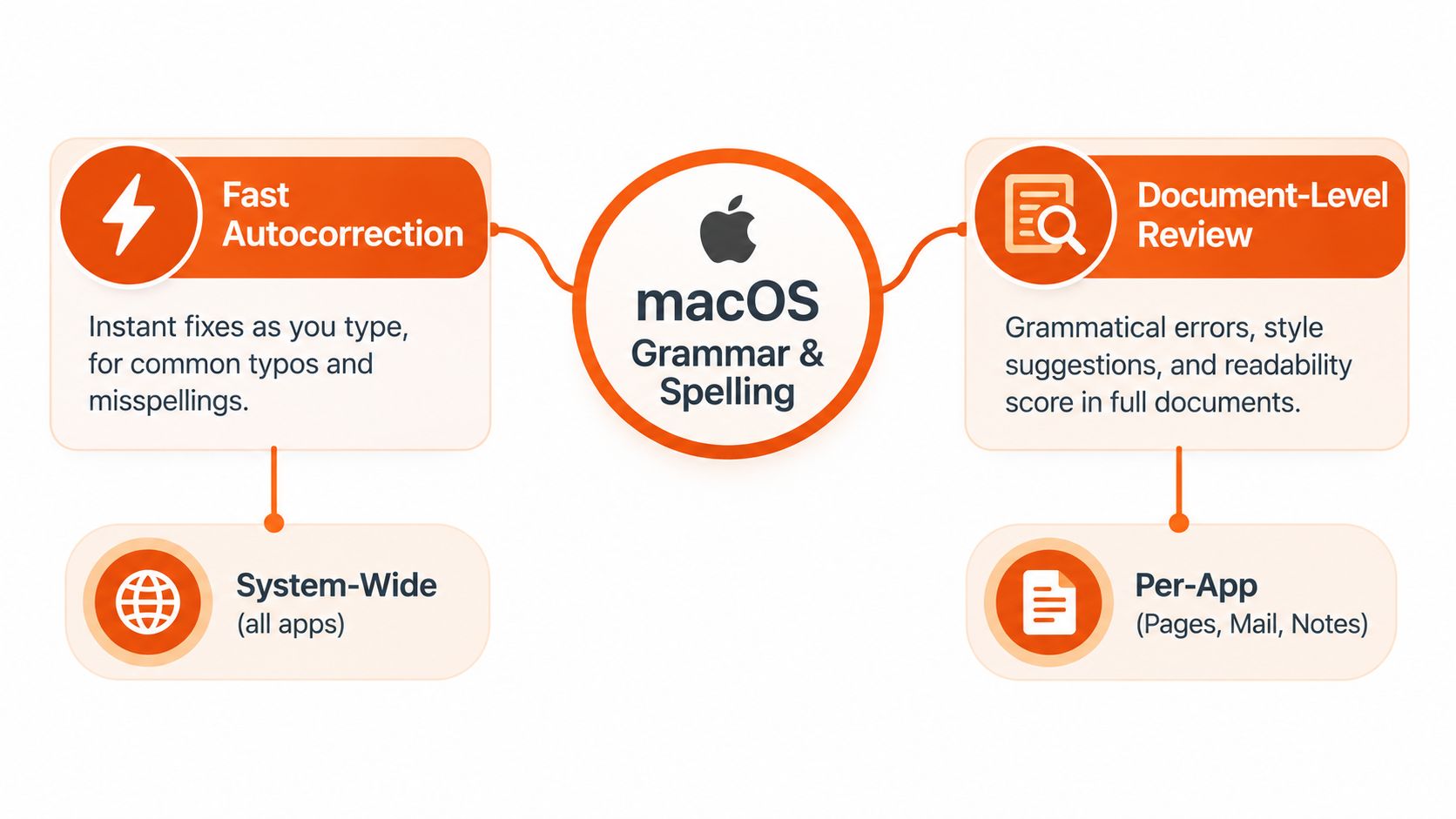
macOS has two related but separate editing layers. Think of the first as a quick spell copilot that works while you type. Think of the second as a proofreader you call when you want to inspect a document more carefully.
Autocorrection handles common misspellings as characters arrive. If you type a word incorrectly, macOS may replace it automatically, depending on your settings and the app. This is fast and convenient, but it focuses mainly on orthography, meaning the form and spelling of words. It won't reliably understand whether a sentence expresses the right meaning.
Grammar checking is a document-level review feature. Apple exposes it through Edit > Spelling and Grammar > Check Grammar With Spelling, and grammar problems appear with dotted blue underlines, as described in Apple's Mac spelling and grammar documentation.
Turn on the fast layer
Open an app that accepts normal text, such as TextEdit or Mail, and select the app's Edit menu. Look for Spelling and Grammar and enable the available spelling or grammar options. Depending on the application, you may also find controls in the app's own settings or in macOS keyboard settings.
The exact behavior can vary because the app controls the text field. A standard document editor may support inline grammar markings, while a specialized web form may support only autocorrection, or neither. If a correction keeps appearing for a name, technical term, or product label, add it to your dictionary or use an ignore rule. Apple's built-in tools support dictionary learning and ignored terms, which helps reduce repeated false flags across your writing.
Use document review deliberately
For a longer document, open Edit > Spelling and Grammar > Check Grammar With Spelling. Scan the dotted blue underlines rather than accepting every suggestion automatically. You can move through errors with Command-Semicolon, which is useful when reviewing a draft without hunting visually through every paragraph.
Spelling and grammar also differ in how they behave. Spelling can often be checked inline or across the document, while grammar review may depend more heavily on the app's support for macOS text services. If the menu item is unavailable or the underline never appears, the likely problem is app coverage, not your ability to find the correct switch.
A useful mental model: autocorrection protects typing speed, while grammar review protects the meaning and structure of a finished draft.
Start with the native tools because they're already part of macOS and require no separate writing destination. They're especially useful for quick notes, Apple apps, and obvious spelling mistakes. Just don't mistake a system baseline for a universal proofreader.
What Mac Built In Tools Catch and Where They Fall Short
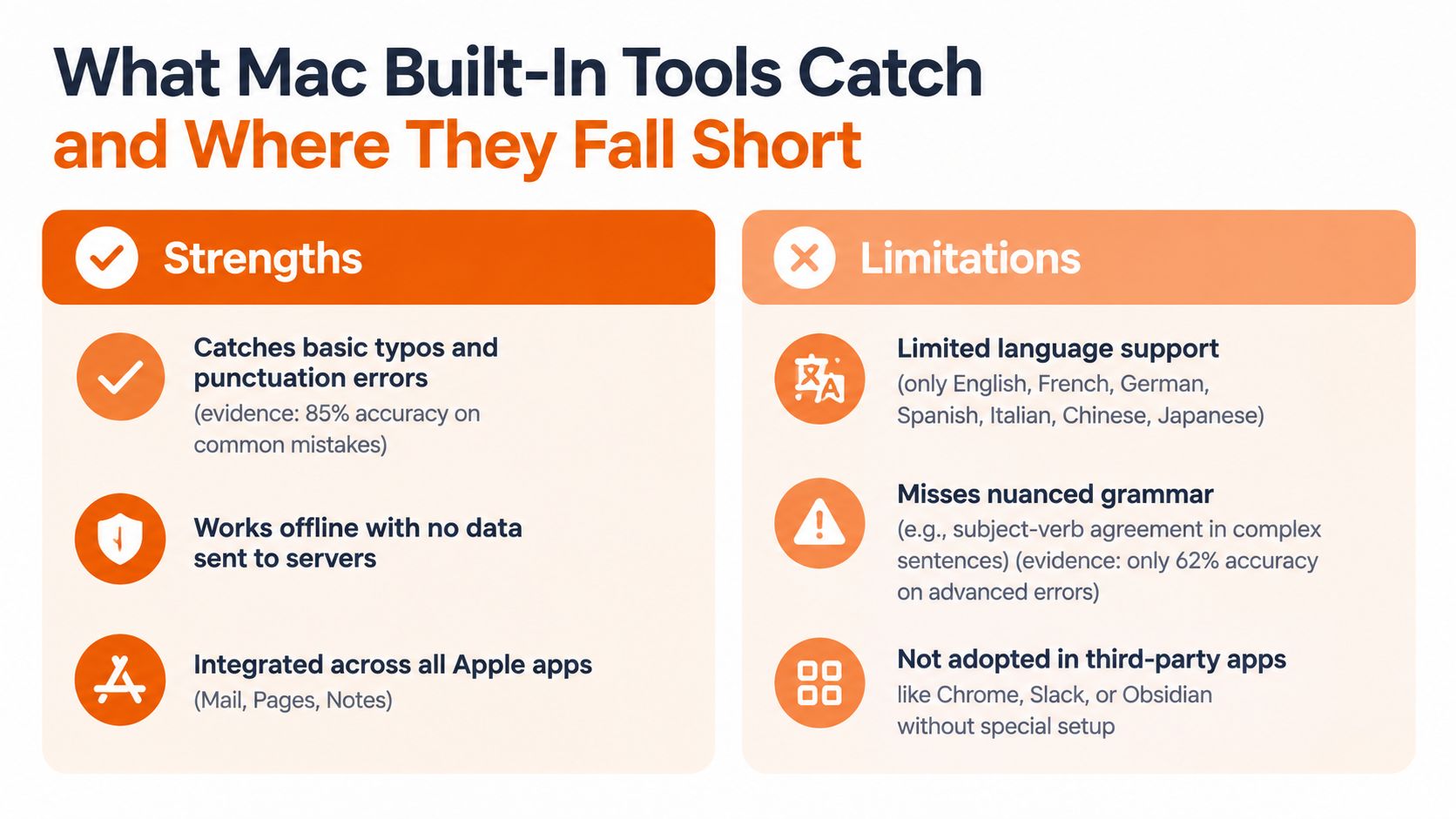
Built-in checking catches the mistakes that are easiest to identify from local context. It can help with misspelled words, familiar punctuation patterns, and some straightforward grammar problems. It's less dependable when a sentence is technically possible but unclear, when the intended tone matters, or when a longer paragraph contains relationships between clauses.
The evidence around automated grammar checking supports a cautious approach. A 2024 systematic review of Grammarly-related studies reported that, in one evaluation, about 69% of the items Grammarly flagged as errors were confirmed as true errors, while 82% of its correction suggestions were judged accurate, according to the review published in Information Technologies and Learning Tools. Those figures describe one evaluation of Grammarly, not Apple's engine, so they shouldn't be presented as a macOS accuracy score. They do show why users should review automated suggestions instead of treating every underline as an unquestionable error.
Three gaps matter most
First, nuanced sentences are difficult. A checker may miss an error hidden inside a long sentence, misunderstand a deliberately unusual construction, or suggest a change that removes your intended meaning. Human reviewers still perform better for some grammatical and structural mistakes, while automated tools tend to be more useful for obvious spelling and punctuation problems, as the cited review discusses.
Second, language coverage isn't universal. Apple's feature-availability information shows that grammar checking can be limited to specific English variants in some contexts. That leaves global users with an awkward choice: accept irrelevant flags, disable checking, or move multilingual text into a separate tool. The issue becomes sharper when a paragraph includes English, a person's name, a product term, and a phrase in another language.
Third, app adoption creates holes. Apple Intelligence Writing Tools can proofread in supported applications, but third-party developers must adopt the relevant API. A Mac user who writes in Slack, an IDE, a browser-based dashboard, or a specialist editor can therefore have a very different experience from someone working in Pages.
What to trust, and what to verify
Use native checking confidently for obvious typos and as a first pass. Slow down when the suggestion changes a technical phrase, a proper name, a bilingual expression, or the relationship between two clauses.
A good review has two questions:
- Is the text grammatically valid?
- Does the proposed replacement say what I mean?
The second question is where automated correction often needs human judgment. For a student writing in a second language, a developer documenting an API, or a marketer protecting a product name, preserving meaning matters as much as removing errors.
Comparing Grammar Check Options That Work Across Your Mac
The practical choice isn't “Apple or an AI checker.” Most Mac writers benefit from a stack, with each layer serving a different job. Native macOS checking is convenient for quick corrections. Browser and app checkers can be strong inside their intended editors. A menu-bar assistant can cover the gaps by operating on selected text from the application you're already using.
The right comparison criteria are straightforward:
- Coverage: Can you use it in Mail, Slack, a browser, an IDE, and a document editor?
- Privacy: Does text leave your Mac, and can you choose local processing?
- Scope: Does it only correct grammar, or can it also adjust tone, translate, summarize, and follow reusable instructions?
- Friction: Can you trigger it without opening a second editor or copying a whole document?
Apple's Writing Tools are convenient where supported, but the API requirement means coverage depends on individual applications. A browser extension may work well in webmail and online documents, yet it won't necessarily follow you into a native development environment. A system-wide assistant takes a different approach: select text, invoke a shortcut, review the result, and return it to the original field.
| Approach | Works Everywhere | Privacy and Offline | Beyond Grammar Features |
|---|---|---|---|
| Built-in macOS checking | Strongest in Apple apps and compatible text fields, inconsistent elsewhere | Depends on the specific macOS feature and app | Primarily spelling and grammar, with newer Writing Tools available only in supported contexts |
| Browser or single-app checker | Strong inside its browser or editor, limited outside it | Often depends on the provider and account configuration | May include tone, rewriting, or suggestions within that application |
| Menu-bar writing assistant | Works with selected text in many apps that accept text input | Can support cloud providers or local models, depending on the product | Grammar, tone, clarity, translation, summaries, and custom workflows can be available |
For candidates preparing application materials, interview answers, or follow-up messages, a broader overview of writing and productivity options may be useful alongside a grammar tool. Interview Pilot resources for candidates provide that wider context without requiring you to treat one checker as the answer to every writing task.
If your writing stays inside Apple apps, start with the native controls. If you move among unrelated applications, read a practical guide to a grammar checker for Mac that focuses on cross-app use rather than a single editor.
How to Set Up an Everywhere Grammar Workflow on Mac
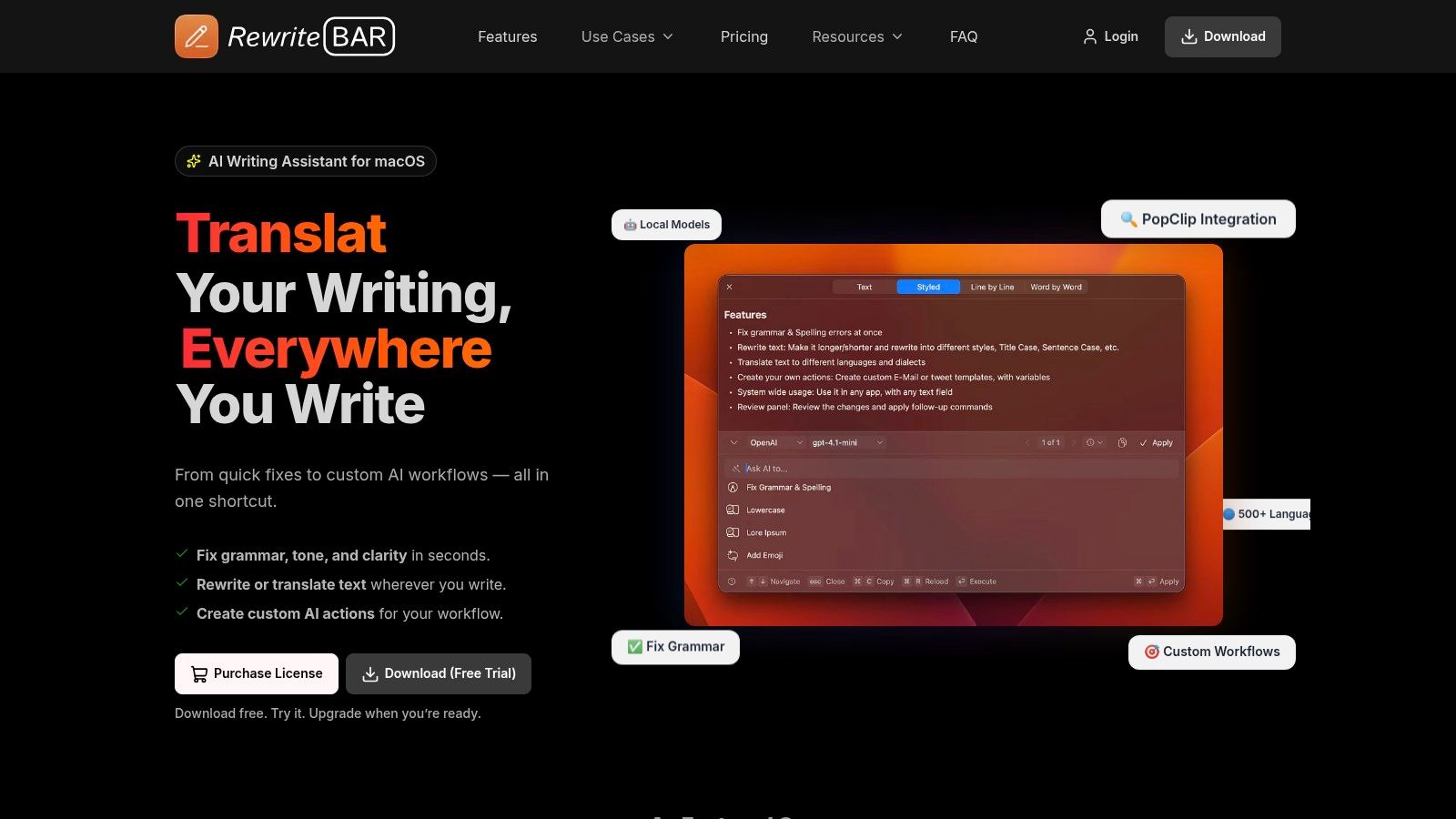
A menu-bar workflow works best when you treat it as a review command, not as another place to compose. Write in the app where the work belongs. When a paragraph needs attention, select it, trigger the assistant, inspect the proposed revision, and send the approved version back to the same field.
Build the basic shortcut habit
Start with a sentence or paragraph that you've written in Mail, Slack, Notes, a browser form, or an IDE. Select the text, press your chosen keyboard shortcut, and run the grammar and spelling action. The assistant should return a corrected version that you can compare with the original before replacing anything.
That comparison step matters for non-native English writers. You can see whether an article was added, whether a verb tense changed, or whether a technical term was misunderstood. It also protects a busy professional from accepting a polished sentence that changes a commitment or deadline.
Choose the AI provider according to the text and your privacy requirements. RewriteBar supports cloud providers such as OpenAI, Anthropic, DeepSeek, and OpenRouter, along with local options through Ollama, LM Studio, and Apple Intelligence. A local model can be appropriate for sensitive drafts when its quality and language support meet your needs. A cloud model may offer a more capable transformation, but you should understand where selected text goes before using it for confidential material.
You can also create reusable actions instead of rewriting instructions every time. A grammar action might correct errors while preserving meaning. A second template could make an email more formal. Another could summarize meeting notes or turn rough requirements into a structured brief. Chaining those actions lets you fix mechanics first, then adjust tone or format.
Review before replacing: Keep the original selection visible until you've checked meaning, names, numbers, links, and technical vocabulary.
PopClip can provide another entry point for selected text. That helps when the mouse is already in use and you want a quick command without remembering a keyboard combination. For shortcut design ideas, see this guide to custom keyboard shortcuts on Mac.
Use the workflow in a real app before customizing it heavily. Select a paragraph in Slack, then a message in Mail, then a code comment in your IDE. If the same habit works in all three places, you've solved the central problem: continuity.
<iframe width="100%" style="aspect-ratio: 16 / 9;" src="https://www.youtube.com/embed/TLApFbqhVCI" frameborder="0" allow="autoplay; encrypted-media" allowfullscreen></iframe>Keep native autocorrection enabled for fast typo repair if it behaves well for you. Use the menu-bar review when you need sentence-level judgment, a tone change, translation, or a consistent custom instruction. That division keeps quick typing fast without asking one feature to handle every kind of editing.
Choosing the Right Setup for Multilingual and Private Writing
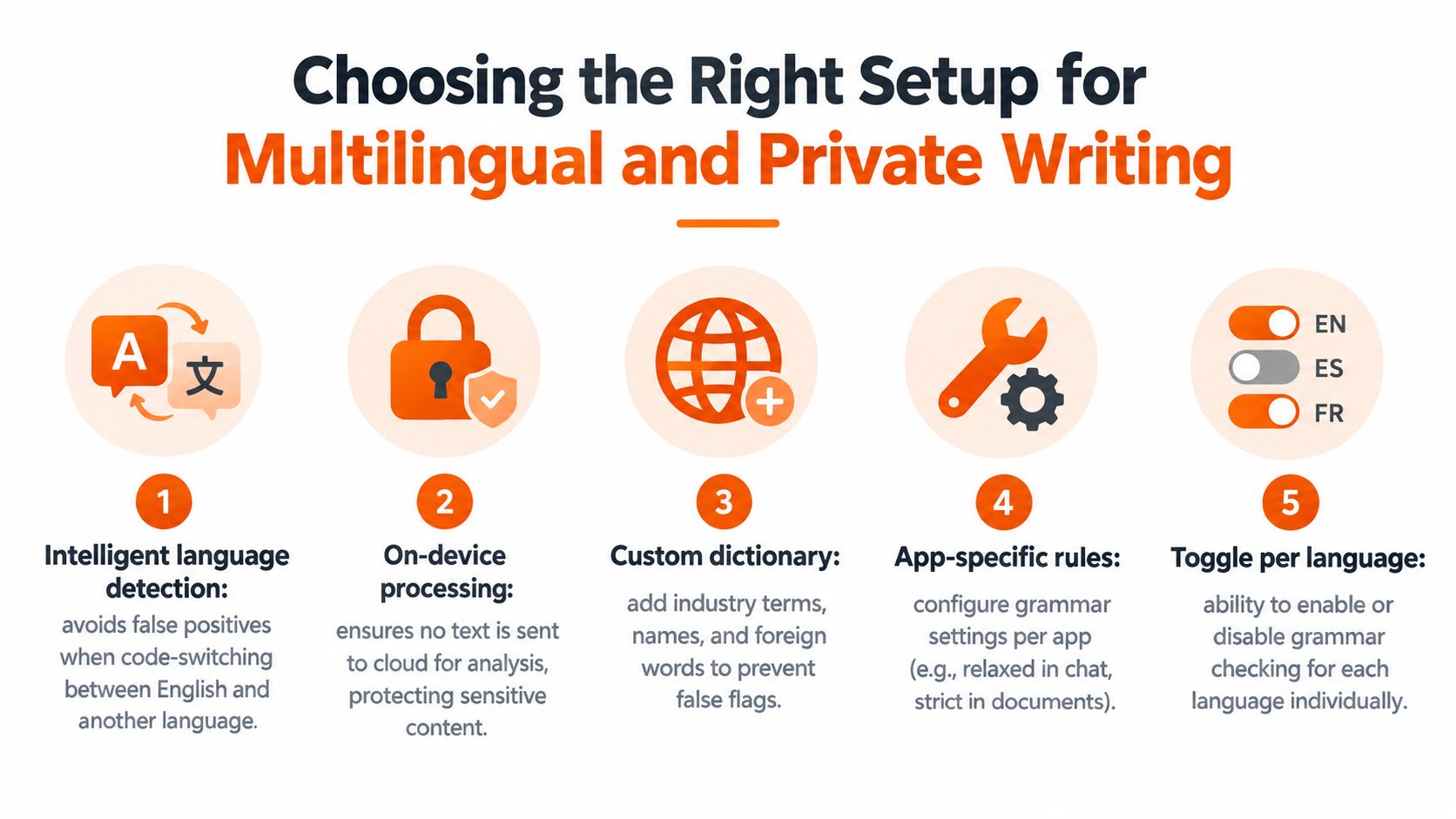
English learners and multilingual professionals need a different standard from a monolingual writer. A checker that flags every foreign phrase may look active, but it isn't helping. It's creating noise that trains you to ignore warnings, including the useful ones.
Apple's feature-availability pages show that grammar checking remains limited to specific English variants in some contexts, as documented on the macOS feature-availability page. Before choosing a setup, check whether it supports the English variant you use and whether it handles the other languages in your documents without treating names or foreign phrases as mistakes.
Test language behavior, not just correction quality
Write a short sample that contains an English sentence, a technical term, a person's name, and a phrase in another language. Watch whether the tool detects the document language intelligently or marks every unfamiliar word. A useful system should let you add terms to a custom dictionary, ignore specific expressions, and control checking for different languages.
Language detection can operate at the document or sentence level. That distinction matters when you switch languages inside one message, such as an English email containing a German product name or a customer's original phrase. Read more about building a multilingual writing assistant workflow before settling on defaults.
Match privacy to the text
For public blog drafts, cloud processing may be acceptable. For legal notes, source code, customer details, research data, or internal strategy, you may prefer on-device processing or a local model. Check the provider settings rather than assuming that a Mac app automatically keeps every selection private.
Hardware and operating-system support also affect Apple Intelligence features. A newer proofreading feature can still be unavailable on an older Mac or in a configuration that doesn't meet Apple's requirements. If offline access or local processing is essential, test that path with your actual languages and applications before relying on it.
A practical setup often has three parts:
- Native checking for quick spelling and familiar Apple apps.
- A language-aware tool for mixed-language documents and second-language writing.
- A local or cloud menu-bar workflow selected according to the sensitivity of each draft.
The best configuration doesn't correct the most words. It gives you reliable signals without punishing multilingual writing.
Your Next Steps to Confident Writing on Mac
Start with the smallest setup that matches your real work. Enable native spelling and grammar controls, learn where the app exposes them, and add important names, product terms, and technical vocabulary to your dictionary. Then test the experience in the applications you use, not only in Pages or TextEdit.
Use this short checklist:
- Check the baseline: Confirm that autocorrection works and that grammar review is available in your main document app.
- Test three environments: Select similar text in an Apple app, a communication tool such as Slack or Mail, and a browser or IDE.
- Compare the friction: Notice where checking disappears, where formatting breaks, and where you have to copy text elsewhere.
- Tune language rules: Add trusted terms, reduce false flags, and test a paragraph that includes code-switching.
- Create one repeatable action: Use a keyboard shortcut for grammar review, then add tone or translation only when you need it.
Your success metric is not the number of underlines. It's whether you can write, review, and send text without changing applications unnecessarily. Built-in tools are a sensible first layer. A menu-bar workflow becomes useful when your work crosses the boundaries that Apple's native integrations can't cover.
Review the setup again when your app mix changes. A student may move from Notes to a learning platform, a developer may add a new IDE, and a marketer may spend more time in browser-based publishing tools. Your grammar workflow should evolve with those changes.
RewriteBar puts grammar, spelling, tone, clarity, translation, and custom text workflows behind a menu-bar shortcut that you can use across Mac apps. Visit RewriteBar to test an everywhere writing workflow that keeps review close to the text you're already writing.

More to read
How to Use AI for Writing (2026 Practical Workflow)
Learn how to use AI for writing with a step-by-step workflow covering prompt templates, editing, privacy options, and ready-to-use examples for every task.
Grammarly Alternative for Mac: Best Picks for 2026
Looking for a Grammarly alternative for Mac? Compare the best options for grammar, tone, privacy, offline use, integrations, and pricing in 2026.
How to Improve Writing Speed Without Sacrificing Quality
Learn how to improve writing speed with proven workflows, typing tricks, and AI tools to draft faster, edit smarter, and stay in flow.
Tags
Written by
Mathias MichelPublished
September 17, 2026